Platform Administration
Account Management
Accounts are the foundation of PromethistAI. They represent your organization within the platform and define the boundaries for billing, member access, and project ownership.
Think of the structure as:
-
Accounts – top-level container. Owns billing, members, and projects.
-
Projects – workspaces that hold agents, assets, and integrations.
-
Agents – the relational experiences delivered to end-users.
This hierarchy ensures that every agent is tied to a project, every project belongs to an account, and billing is consolidated at the account level.
Selecting an Account
It’s common for consultants, agencies, or enterprises with multiple divisions to have access to more than one account.
After you sign in, Select Your Account shows one card for every account you belong to. Each card shows the account logo and name and up to three of its projects.
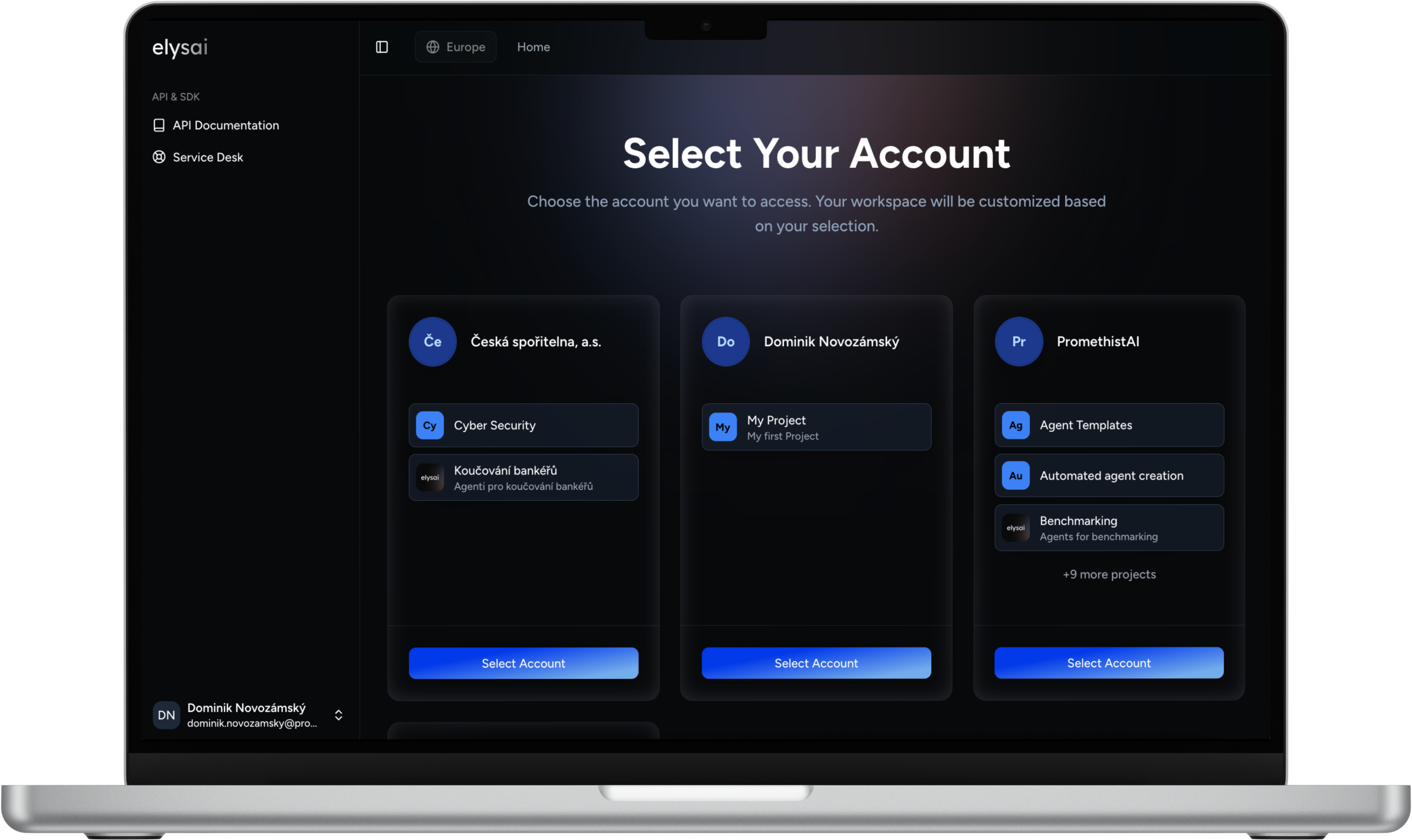
Click Select Account to open the account’s Projects page. To come back to this page later, click the PromethistAI logo at the top of the sidebar.
|
Example: A design consultant may be an Owner in their agency’s account, but only a Viewer in a client’s account.
Creating an Account
Anyone who can sign in can create an account.
-
On Select Your Account, click Create your own below the cards. If you don’t belong to any account yet, Create New Account opens automatically.
-
Enter the Account Name, usually your organization’s name.
-
Click Create Account.
The new account opens on its Projects page, with a first project already created for you.
|
Account Projects
Account → Projects lists the projects of the account that you can access. Account members see every project. Project members see only the projects they belong to.
Logo |
The project logo, or its initials. |
Project |
The project name. Click a row to open the project’s Agents. |
Description |
The project description. |
Use Search projects to filter by name or description.
Creating a Project
-
Click Create Project.
-
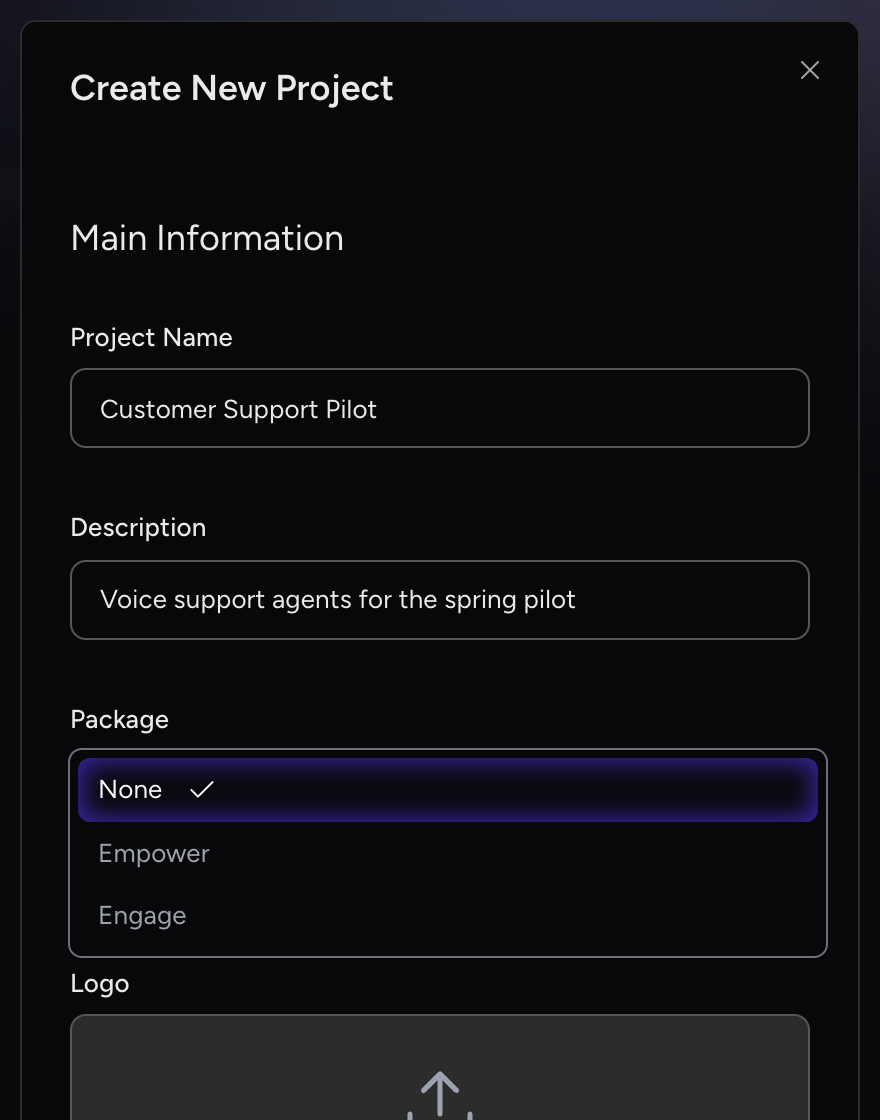
Enter the Project Name.
-
Optionally add a Description, choose a Package, upload a Logo and set the Colors. See Project Settings for what each field does.
-
Click Create Project.
|
Opening a Project from a Client Profile
From a client profile, use the Open project button to jump straight into the project. It redirects you to the Web Client, where you can open the agent you need.
| The Open project button only appears once the project has at least one published agent. If no agent has been published yet, the button is not shown. |
Account Settings
Account → Settings is where account-level options are managed. It is visible to account Owners only. Settings apply across the whole account, so they affect every project under it. Click Save Changes to apply all your edits, including the Display full conversation data toggle.
Account Name |
The display name of your account, usually your organization’s name. |
Account Logo |
The image shown on your account card. Click to upload or drag and drop an image ( |
LiveAvatar API Key |
The account-level API key used for LiveAvatar stream rendering. Paste the key from your LiveAvatar (HeyGen) account here to enable the LiveAvatar stream option in Avatar Source. This key applies to every project under the account, but a project-level key takes precedence where one is set. |
Display full conversation data |
Controls whether full session transcripts are shown. See Display full conversation data. |
Display full conversation data
Full transcripts include the names and email addresses of your users. If your projects require this data to be anonymized, turn the toggle off.
On (default) |
Everyone with access to a project can see Conversations in its Analytics Suite. |
Off |
Conversations is hidden in every project of the account, for every role, and transcripts are left out of analytics exports. |
| The change takes effect only after you click Save Changes. Changes to this setting are traceable and auditable. |
Selecting Platform Region (US/EU)
PromethistAI runs separately in the EU and the US. Each region has its own accounts, projects, agents, knowledge bases and analytics. The region button in the top bar (globe icon) shows the region you are working in.
How to switch
-
Click the region button in the top bar (e.g., EU).
-
Under Region, choose the other region (e.g., US).
-
The console opens that region’s Select Your Account page.
• |
Switching regions does not move data. It only changes which region you’re viewing. |
• |
An account exists in one region only. If you don’t see an account, check that you are in the right region. |