Project Management
Agents & Assets
Overview
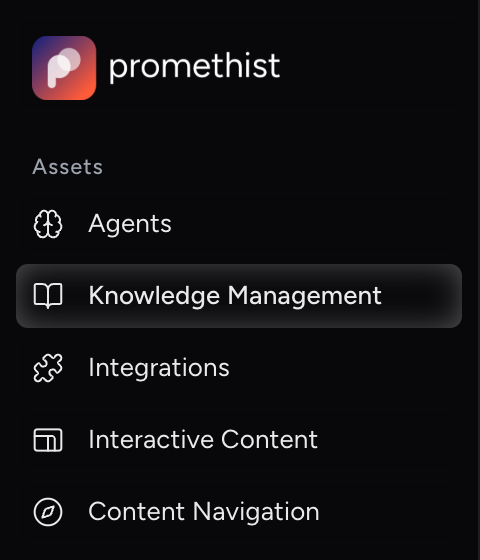
Agents in a project share a common set of assets. You find them in the left sidebar under Assets:
Knowledge Management |
Documents and web pages your agents answer from. |
Integrations |
Webhooks that run before or after a conversation, and MCP servers whose tools your agents call during it. |
Interactive Content |
Inputs, choices, images, videos, web pages and handovers shown inside the conversation. |
Content Navigation |
Menu items and quick actions in the end-user app, optionally unlocked by evaluation results. |
An agent can use an asset only if the asset is Global or the agent references it. Global is off by default when you create an asset. See Assets Visibility.
|
Owners and Editors can create, edit, clone and delete assets. Viewers can open every asset, but all fields and actions are read-only. |
Knowledge Bases
|
What are Knowledge Bases for? Knowledge bases are what your agent knows. Add your content and the agent can reference it in conversation, accurately and consistently.
|
Knowledge bases are shared repositories of information that Relational Agents use to ground their responses in reliable facts. They function as structured content libraries within each project, enabling agents to answer questions accurately, perform complex reasoning, and remain consistent across conversations.
How Knowledge Bases Work in PromethistAI
Knowledge bases are project-level assets:
-
An agent can use a knowledge base only if it is Global or referenced in the agent’s configuration. Global is off by default when you create a knowledge base.
-
Files and Static links are parsed and split into chunks once, when you add them. In each conversation turn, the agent retrieves the most relevant chunks.
-
Dynamic links are fetched each time the agent needs them. They are not split into chunks.
-
Renaming: You can change a knowledge base’s name at any time. Its reference stays the same, so agents that already reference it keep working.
When an agent receives a query, it combines relational intelligence with structured retrieval from the knowledge base. This allows it to adaptively pull facts, mirror user context, and deliver an answer that is both empathetic and precise.
If multiple knowledge bases are available, the agent will attempt to select the most relevant source. For best results, you can instruct the agent explicitly to use a particular knowledge base for specific topics.
Supported Formats
PromethistAI supports a wide range of enterprise file formats:
Text and Documents |
PDF, TXT, DOC, DOCX, HTML, HTM |
Data Files |
CSV, XLSX |
Presentations |
PPTX |
Images |
JPG, JPEG, PNG, TIFF, TIF |
Maximum file size is 10 MB. When uploaded, each file is parsed so its contents are searchable in conversation.
Images are read with text recognition. If an image has no readable text, the upload fails. Use a screenshot with larger, higher-contrast text, or upload the content as a document instead.
Best Practices
To get the most from knowledge bases:
-
Be explicit: Instruct an agent which knowledge base to consult for a given scenario. Example: "When answering questions about Company X, always use the Company_data knowledge base."
-
Keep content structured: Use clear headings, consistent formatting, and concise entries. Parsed documents with logical sections produce better retrieval quality.
-
Segment by purpose: Create separate knowledge bases for distinct domains (e.g. Support_FAQ, Retail_Catalog, Compliance_Guides).
-
Update regularly: Outdated documents stay live until you replace or delete them. Review knowledge bases periodically to ensure accuracy.
Managing Knowledge Bases
Adding a Knowledge Base
To add a new knowledge base:
-
Click Knowledge Management in the left sidebar.
-
Click Create in the top right corner.
-
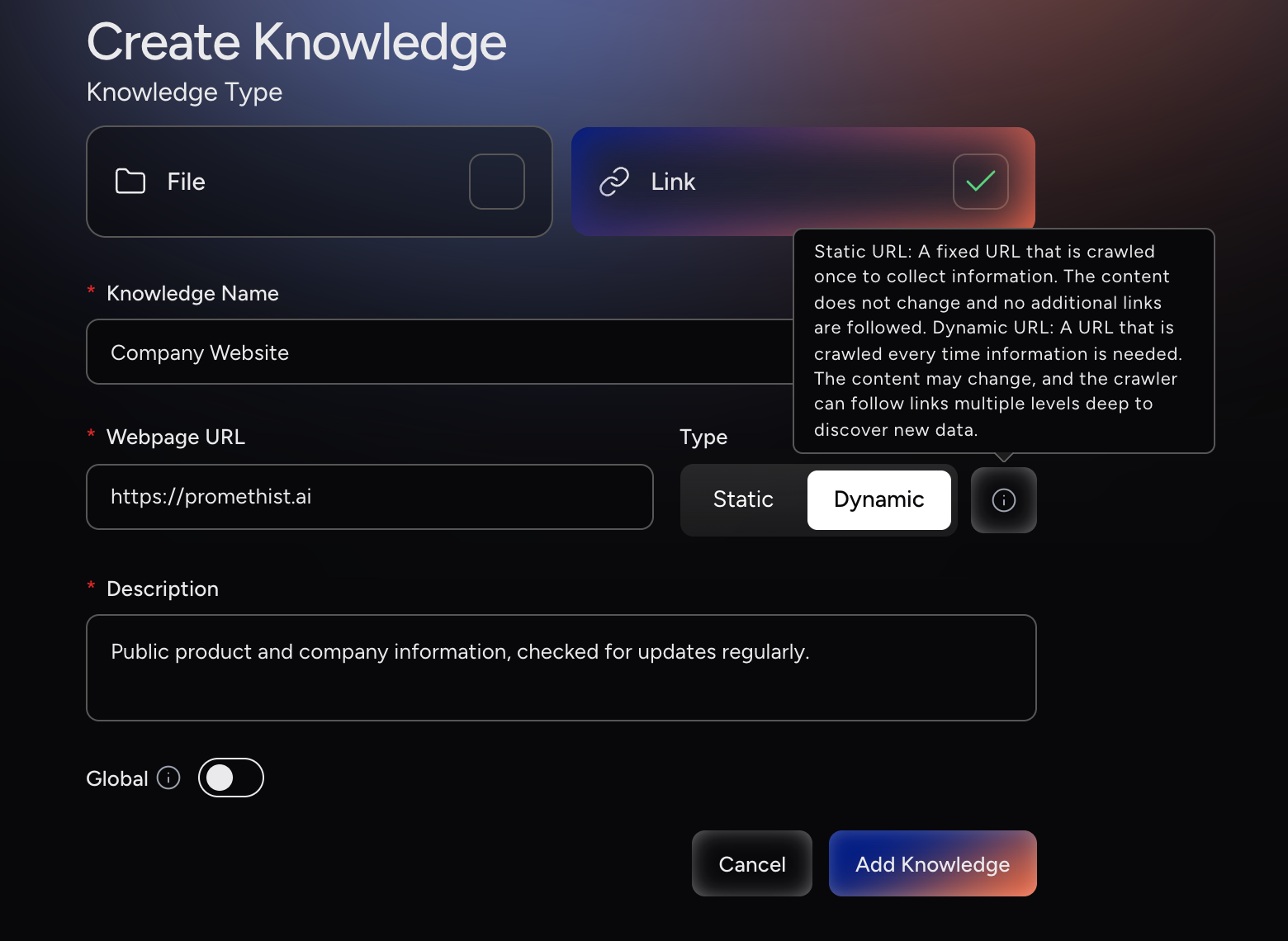
On the Create Knowledge page, choose a Knowledge Type: File or Link.
-
Fill in the fields for the type you chose (see below).
-
(Optional) Turn on Global to make this knowledge base available to every agent in the project. It is off by default. See Assets Visibility.
-
Click Add Knowledge to save.
File fields:
-
Knowledge Name: a name for the knowledge base. Its reference is created from it.
-
Description (optional): a short summary of what the file contains. If you leave it empty, the platform writes one from the file’s content.
-
Upload File: drag and drop one file into the upload area or click it to browse. Maximum size 10 MB. See Supported Formats for accepted extensions.
Link fields:
-
Knowledge Name: a name for the knowledge base. Its reference is created from it.
-
Webpage URL: the address of the page to use.
-
Type (default Dynamic):
-
Static: the page is downloaded once and stored. Best for pages that rarely change.
-
Dynamic: the page is fetched every time the agent needs it. Use it for content that changes often, such as prices or news. It is slower than Static and is not split into chunks.
-
-
Description: describe what the page contains so the agent knows when to consult it.
Once added, the content is processed automatically. If Global is off, agents must reference the knowledge base to use it.
|
You can also create a knowledge base without leaving the agent editor: open the reference menu, go to Knowledge Management and click Add New. The new knowledge base is inserted as a reference into the field you’re editing. See Referencing Assets in an Agent. |
Viewing, Editing and Deleting
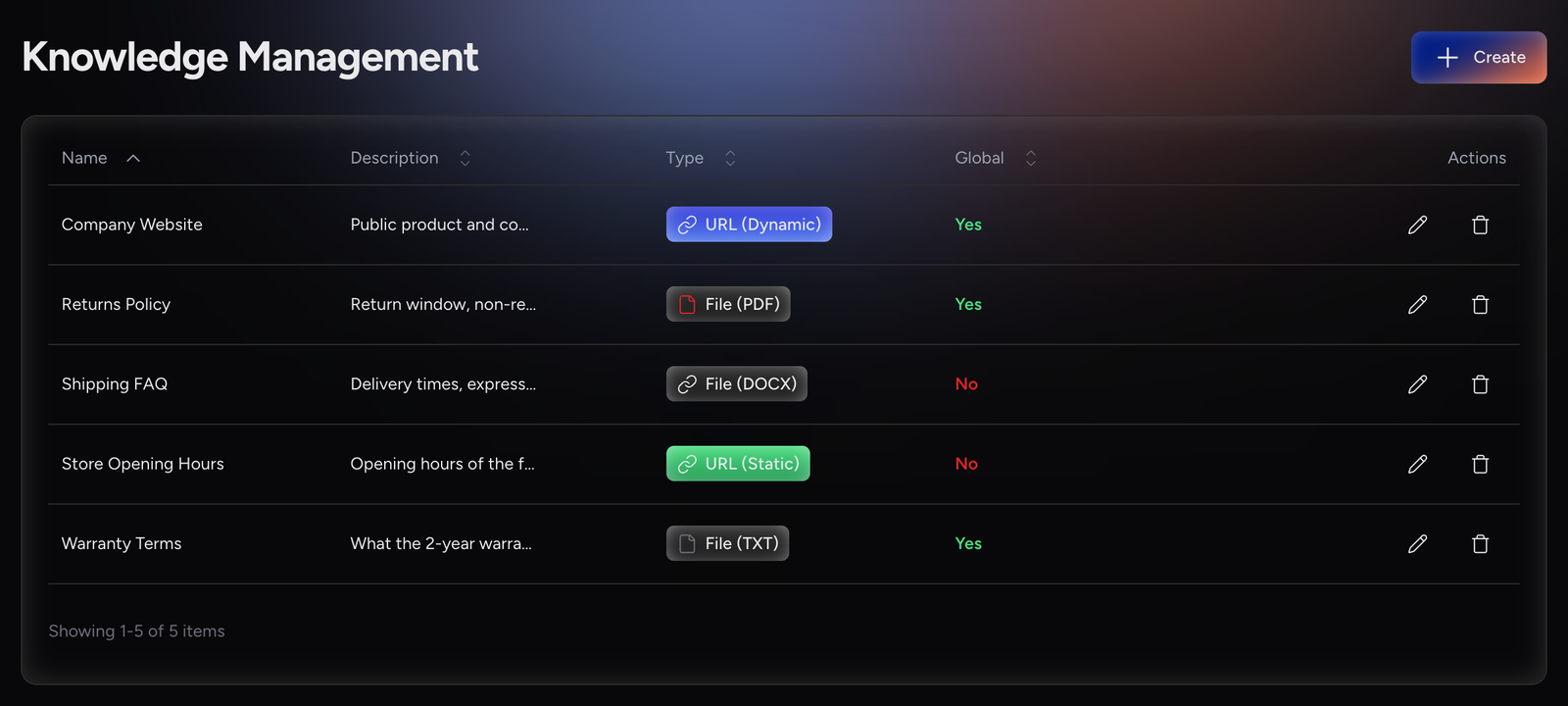
Knowledge Management lists every knowledge base in the project:
Name |
The knowledge base name. |
Description |
Short summary. |
Type |
|
Global |
Yes if every agent in the project can use it. |
Actions |
Edit (pencil) and Delete (bin). |
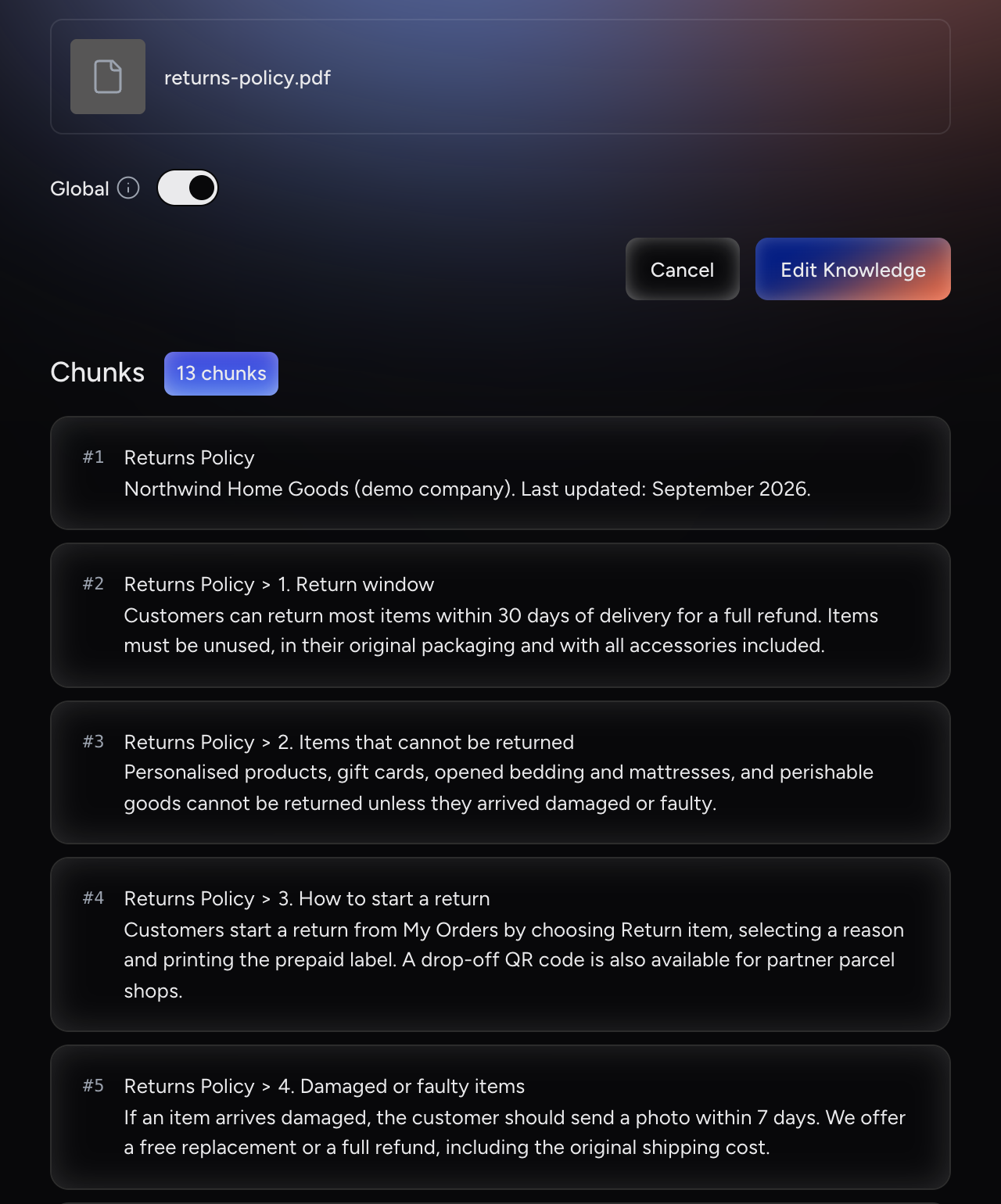
Click a row or the pencil icon to open Edit Knowledge. There you can:
-
Change the name, description and Global setting.
-
Replace the file of a file-based knowledge base. The new file is processed again.
-
Refresh a Static link: open it and save it again, and the page is downloaded again. The reference stays the same.
-
Review the Chunks: the numbered pieces of text the agent retrieves from. Dynamic links have no chunks, because their content is fetched live.
To delete a knowledge base, click the bin icon and confirm. Deleting is permanent and cannot be undone.
Integrations
|
What are Integrations for? Integrations connect your agent to external systems, so it can pull in data before a conversation starts, or push data out when one ends.
Integrations can be connected to platforms like Zapier, Make, N8N, or any custom service your team maintains. |
Integration Types
When creating a new integration, the app first asks you about the type. Currently, only the custom type is available.
To create an integration, click Integrations in the left sidebar, click Create, select Custom Integration, then choose Before Action, During Action (MCP) or After Action.
The Integrations list shows Name, URL, Type (pre for Before Action, during for During Action (MCP), post for After Action) and Actions. Click a row to edit an integration. Deleting an integration is permanent.
Custom Integrations
There are three sub-types of custom integrations, each tied to a different point in the conversation:
-
Before Action: a webhook called before the conversation starts. Useful for session initialization (e.g., loading customer profile or context).
-
During Action (MCP): an MCP server the agent can call during the conversation. The agent decides when to invoke it (e.g., live tool calls or data lookups).
-
After Action: a webhook called after the conversation ends. Useful for post-conversation processing (e.g., logging summaries, updating a CRM).
All these integrations are technology agnostic: both webhooks and MCP servers can be implemented in many ways, including various low-code/no-code platforms like N8N, Zapier, Make, and Workato. In the platform, you simply link your external services and tell the agent how it can use them.
Before Action
A Before Action is a webhook triggered before the first speech of the conversation. It is typically used to fetch data into the context: customer profiles, relevant information from other systems, user preferences, predictions from other AI models, and more.
Configuration Fields
Name |
A name for the integration. |
Description |
This text is added into the context of the language model before the actual output of the webhook. It should explain what kind of information the agent is getting from this source and/or how it should be used. |
URL |
URL of the webhook to be called before the conversation starts. The endpoint should return text or structured output the agent can use as context at the start (e.g., user profile, last session summary). |
Headers |
Click Add Header to add a name/value pair, typically an authentication header. Header names can’t contain spaces. |
Timeout |
How long the engine waits for the webhook to finish, in milliseconds. Pre-filled with 500 (half a second); increase it for slower services. |
Retries |
How many times the engine will try in case of failure or timeout before giving up. Pre-filled with 1. If your action is not idempotent (it has side-effects that should not be repeated), you may want to disable retries (value = 0). |
Default value |
If the webhook does not work (after all retries the service still fails or times out), this value is added into the context instead of the real response. This can inform the model that contextual data could not be retrieved. |
Webhooks are always called with POST and are always active. To stop one, delete it.
Request Format
The webhook receives information in this format:
{
  "userId": "<user_id>",
  "deviceId": "<device_id>",
  "agentRef": "<agent_ref>",
  "sessionId": "<session_id>",
  "attributes": {
    "name": "<name_from_identity_provider>",
    "email": "<email_from_identity_provider>"
  }
}|
The |
After Action
An After Action is a webhook triggered after the conversation ends. It is used to inform other services about the outcomes of the conversation and trigger various reactions. You can create a summary and send it via email, extract information and post it into a Slack channel, or update your CRM.
Configuration Fields
Name |
A name for the integration. |
URL |
URL of the webhook to be called after the conversation ends. The endpoint should accept the session data and can return status or confirmation; it’s mainly for logging or updates, not for enriching the live conversation. |
Headers |
Click Add Header to add a name/value pair, typically an authentication header. Header names can’t contain spaces. |
Timeout |
How long the engine waits for the webhook to finish, in milliseconds. Pre-filled with 500 (half a second). |
Retries |
How many times the engine will try in case of failure or timeout before giving up. Pre-filled with 1. If your action is not idempotent (it has side-effects that should not be repeated), you may want to disable retries (value = 0). |
Webhooks are always called with POST and are always active. To stop one, delete it.
Request Format
Your webhook will receive information in this format:
{
  "sessionId": "<session_id>",
  "contentRef": "<agent_ref>",
  "userAgent": "<client_version>",
  "userId": "<user_id>",
  "username": "<username>",
  "transcript": "<transcript>",
  "attributes": {
    "name": "<name_from_identity_provider>",
    "email": "<email_from_identity_provider>"
  }
}|
The |
During Action (MCP)
A During Action uses MCP (Model Context Protocol), a standard mechanism that lets agents interact with other services and tools during the conversation. While knowledge bases provide static content and Before/After Actions trigger at fixed conversation points, an MCP-based During Action provides dynamic, self-described tools that the agent (or more precisely, the Large Language Model) can choose to call mid-conversation.
MCP integrations are managed at the project level. Agents can use their tools only if the integration is Global or the agent references the tools it needs. One integration can power many agents without duplicate configuration.
When invoked in conversation, the MCP integration acts as an extension of the agent. The agent decides when to call it, passes the required context, and integrates the response back into the dialogue. This ensures that the technical exchange with the external system remains invisible to the end user. They experience a continuous, natural interaction, while the agent silently handles the back-end integration. MCP integrations are typically used to:
-
Connect agents to internal ticketing or CRM systems.
-
Allow secure calls to enterprise APIs.
-
Integrate specialised data or toolchains directly into conversational flows.
Configuration Fields
Name |
The integration’s reference is created from it. |
URL |
The endpoint URL of your MCP server. |
Auth Header Name |
The name of the authentication header if required by your MCP server (e.g., |
Auth Header Value |
The value of the authentication header if required by your MCP server. |
Connections use the Streamable HTTP transport, the current MCP standard.
Selecting Tools
-
Fill in the configuration fields.
-
Click Try Connection. The platform connects to the server and lists its tools under MCP Tools.
-
Select the tools agents may use. Expand a tool to read its description.
-
(Optional) Select Is Global to make the selected tools available to every agent in the project. The checkbox appears only after a successful Try Connection, and it is off by default.
-
Click Create Integration.
|
|
Typically, you only want to add the tools that are actually needed into the context. Too many unnecessary tools could confuse your agent. |
Interactive Content
|
What is Interactive Content for? Sometimes conversation alone isn’t enough. Interactive content lets your agent show or collect structured content mid-conversation, without the user ever leaving the session.
You configure these interactions once at the project level and make them Global or reference them in the agents that should use them. When the agent decides the moment is right, it triggers the interaction. The app renders it, captures the user’s response, and hands it back to the agent to continue the conversation. |
Supported Interaction Types
PromethistAI supports a growing set of multimodal assets, including:
Choices |
Selectable tiles that let users choose between multiple options. |
Images |
Enable relational agents to display images during the conversation. |
Input Fields |
Structured forms for capturing details such as account numbers, contact information, or survey responses. |
Webpages |
Embedded views that let users interact with existing enterprise web tools without leaving the conversation. |
Handover |
Transfer the conversation to another relational agent, ending the current session and starting a new one with the selected agent. |
Video |
Enable relational agents to play video content during the conversation. |
Creating Interactive Content
-
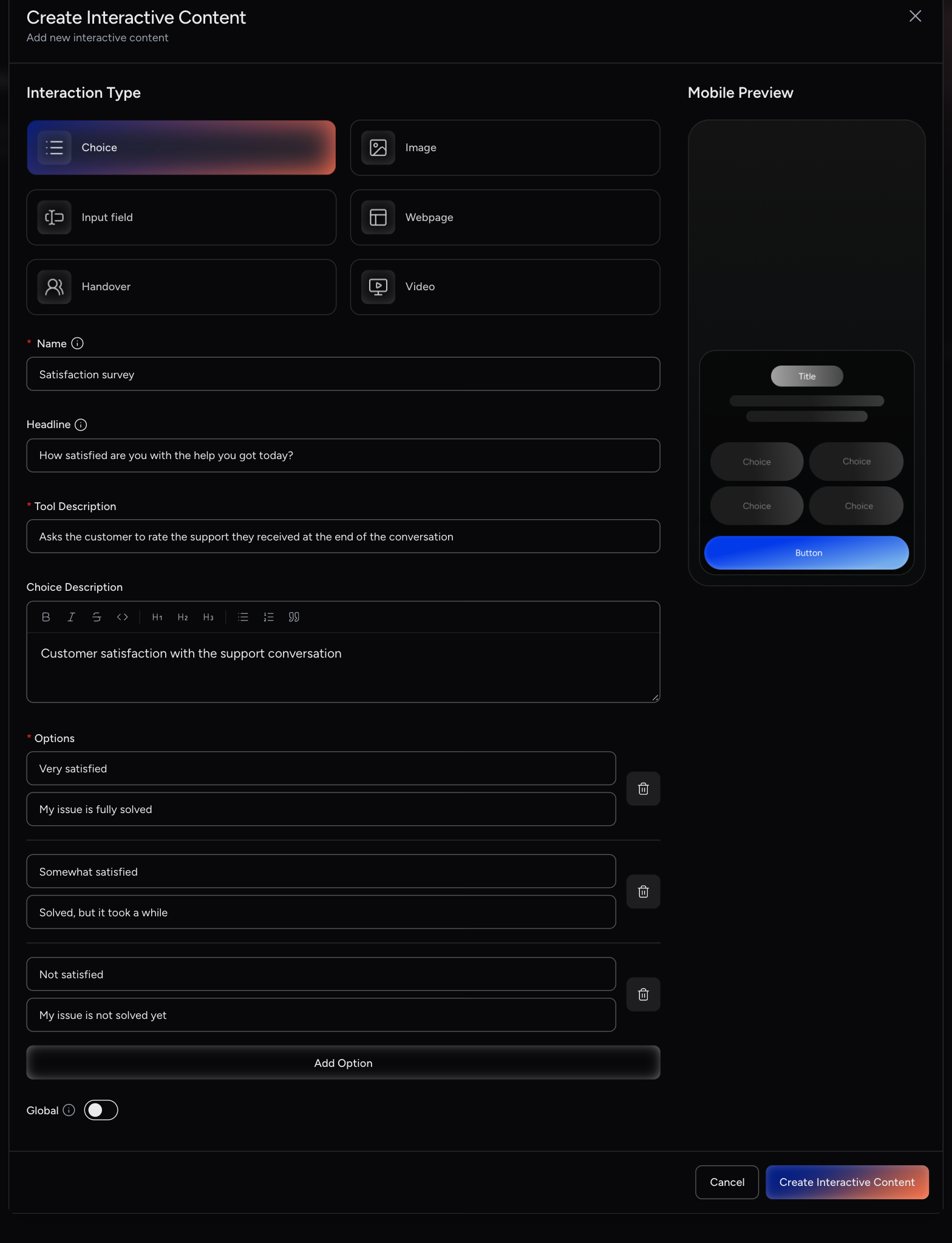
Click Interactive Content in the left sidebar, then Create.
-
Select an Interaction Type: Choice, Image, Input field, Webpage, Handover or Video. A preview of the type appears on the right.
-
Fill in the common fields:
Name
Internal name, never shown to end users. The item’s reference is created from it and doesn’t change if you rename the item later.
Headline
Optional. The title end users see. If you leave it empty, the agent writes one.
Tool Description
Tells the agent when to show this content and how to behave. This field has the biggest effect on whether the agent uses the content at the right moment.
-
Fill in the fields for the type:
Webpage
URL (optional).
Image
Image Upload. One image, up to 10 MB. Large images are resized to a maximum of 1980 px.
Video
Video. Drag in a video file (MP4, WEBM, OGG or MOV, up to 100 MB) or paste a video URL.
Input field
Input Type: Text, Number, Email or Date. Input Description: what the user is asked for.
Choice
Choice Description and Options. Each option has a title and an optional description. At least one option needs a title. Click Add Option for more.
Handover
See Handover Interaction.
-
(Optional) Turn on Global. It is off by default.
-
Click Create Interactive Content.
The Interactive Content list shows Name, Type (for example Input:Email), Description (the Tool Description), Global and Actions:
-
Edit: opens the item.
-
Clone: creates a copy called "<name> - clone", including uploaded images and videos.
-
Delete: removes the item and its uploaded media. This cannot be undone.
Formatting the Description
When you create Choice or Input Field interactive content, the Choice Description or Input Description field is a rich-text (Markdown) editor. Use the toolbar above the field to format the text with:
-
Headings (H1, H2, H3)
-
Bold, italic, and strikethrough
-
Inline code
-
Bulleted and numbered lists
-
Block quotes
Handover Interaction
The Handover interaction allows agents to transfer conversations to other relational agents. When triggered, the current session ends and a new conversation begins with the target agent.
This is useful for:
-
Escalating conversations to specialist agents
-
Routing users based on their needs or intent
-
Transferring to agents with specific expertise or capabilities
Configuration
When creating a Handover interaction, configure the following fields:
Name |
Internal name, never shown to end users. The reference is created from it. |
Headline |
Optional title shown to the user (e.g., "Talk to relational agent"). If empty, the agent writes one. |
Tool Description |
Instructions for the agent about when and how to use this handover (e.g., "End the session, switch to relational agent and start the conversation"). If an agent has several handovers, it chooses between them by this text, so make each one clearly different. |
Handover target |
Choose from the project’s published agents: • None selected: the assistant picks the best-matching published agents. Use the Assistant picks up to counter to set how many it may offer (1 to 10, default 3). • One agent: the conversation is handed over to that agent directly. • Several agents: the user chooses among exactly those agents. Only published agents appear in the picker. The handover always uses each agent’s latest published revision, so you don’t need to reconfigure it when the target agent is republished. |
Show as detail |
Toggle on to show the target agent’s details to the user before the handover starts, rather than switching immediately. |
Global |
Toggle on to make this handover available to all agents in the project. Toggle off (the default) to limit it to agents that reference it. |
Content Navigation
|
What is Content Navigation for? Content Navigation builds the menu and the quick actions your users see in the end-user app. You can group items into folders, list them in the app’s navigation menu, let agents offer them during a conversation, and keep them locked until the user reaches a result in an evaluation.
|
Navigation Types
The Navigation Type decides what the item does and which field you fill in for it. Name, Description, Parent Folder, Order, Image URL, Active, Show in app navigation and the unlock condition are the same for every type.
| Type | What it does and what you configure | Example |
|---|---|---|
Folder |
Groups other items. A folder has no content of its own, and no Tool Description or Global switch. Agents don’t offer folders. |
A folder named "Daily training" that holds the training items. |
Text |
Shows a text to the user. You enter the Text that is shown when the item is triggered. |
A short reminder or instruction. |
Action |
Triggers an action in the client app. You enter the Action Name that identifies the action. |
|
Route |
Opens a screen of the client app. You enter the Route that identifies the screen. |
|
URL |
Opens a web page. You enter the URL of the page. |
|
| Text, Action, Route and URL items can be offered by agents as quick actions. For these types, add a Tool Description that tells the agent when to offer the item, and make the item Global or reference it in the agent. See Creating a Navigation Item. |
Creating a Navigation Item
-
Click Content Navigation in the left sidebar, then Create.
-
Select a Navigation Type.
-
Fill in the fields:
Name
The label users see in the app. The item’s reference is created from it.
Description
Optional.
Text / Action Name / Route / URL
For the matching type: the content of the item.
Tool Description
Not for folders. Tells the agent when to offer this item as a quick action.
Parent Folder
The folder this item belongs to, or No parent for the top level.
Order
Default 0. Items are sorted by it within their level.
Image URL
Optional icon or image.
Global
Not for folders. Off by default. Makes the item available to all agents as a quick action. If it’s off, reference the item in the agents that should offer it.
Show in app navigation
Off by default. Lists the item in the app’s navigation menu at all times.
Active
On by default. Inactive items are hidden from users.
Unlock condition
Off by default. Keeps the item locked until an evaluation result matches. See Unlock Conditions.
Locked Message
Shown while the item is visible but locked. Default: "Currently not available."
-
Click Create Navigation.
Unlock Conditions
Turn on Unlock condition to keep an item locked until a result from an evaluation matches. Without a condition, the item is always unlocked.
Condition Source |
Evaluation insight (one output data element of an evaluation) or Featured evaluation (the featured output of an evaluation). |
Evaluation Insight / Featured Evaluation |
The result to check. Only evaluations in this project are listed, and only evaluations with a featured output appear under Featured Evaluation. |
Match |
Always, Boolean value, Number at least or Number at most. |
Expected value |
For Boolean value. On unlocks the item when the result is true, off when it is false. |
Threshold |
For Number at least and Number at most. Default 1. |

See Evaluations for how output data elements and featured outputs are produced.
Managing Navigation Items
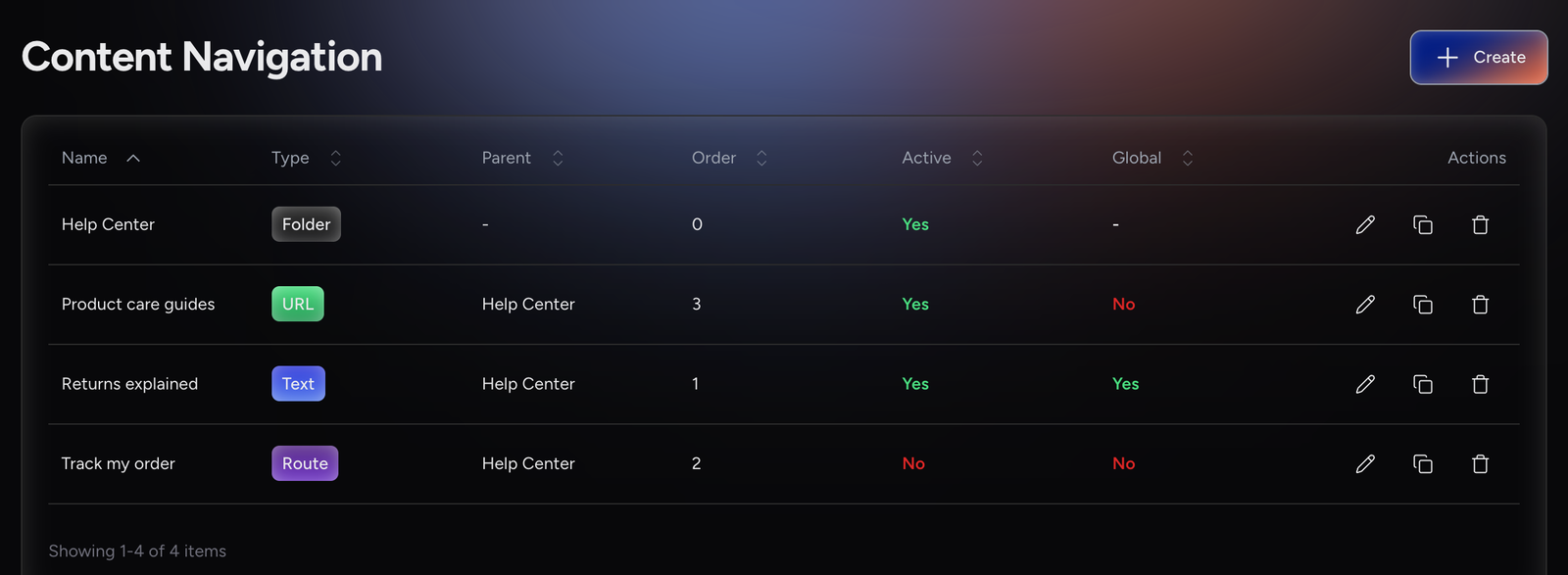
The Content Navigation list shows Name, Type, Parent, Order, Active, Global (- for folders) and Actions: Edit, Clone (creates "<name> - clone") and Delete.
|
Evaluations
Evaluations now have their own page: Evaluations. Jump straight to:
Assets Visibility (Project-Wide)
Every asset in a project is either Global or Non-Global. This decides which agents can use it.
Global Assets
A Global asset is available to every agent in the project, even if the agent’s configuration doesn’t mention it.
-
Best for shared resources that all agents should have access to.
Non-Global Assets
A Non-Global asset can be used only by agents that reference it, for example in Objective, Business Process Steps or Guardrails. Until an agent references it, no agent uses it.
-
Best for specialized resources that should be isolated to specific agents.
-
Provides fine-grained control over asset access per agent within a project.
|
Global is off by default when you create an asset. Turn it on, or reference the asset in your agents. Otherwise the asset is never used. |
Configuring Asset Visibility
Knowledge Management |
Global switch |
Integrations (During Action (MCP)) |
Is Global checkbox, shown after a successful Try Connection |
Interactive Content |
Global switch |
Content Navigation |
Global switch (not for folders) |
Before Action and After Action webhooks have no visibility setting.
Referencing Assets in an Agent
In Objective, Business Process Steps or Guardrails, click Reference or type @, then pick the asset. The menu groups assets into Knowledge Management, Interactive content, Integrations, Skills and Content Navigation. Integrations are listed per tool, as Integration / tool. Use Add New to create a knowledge base, an integration or interactive content without leaving the agent.
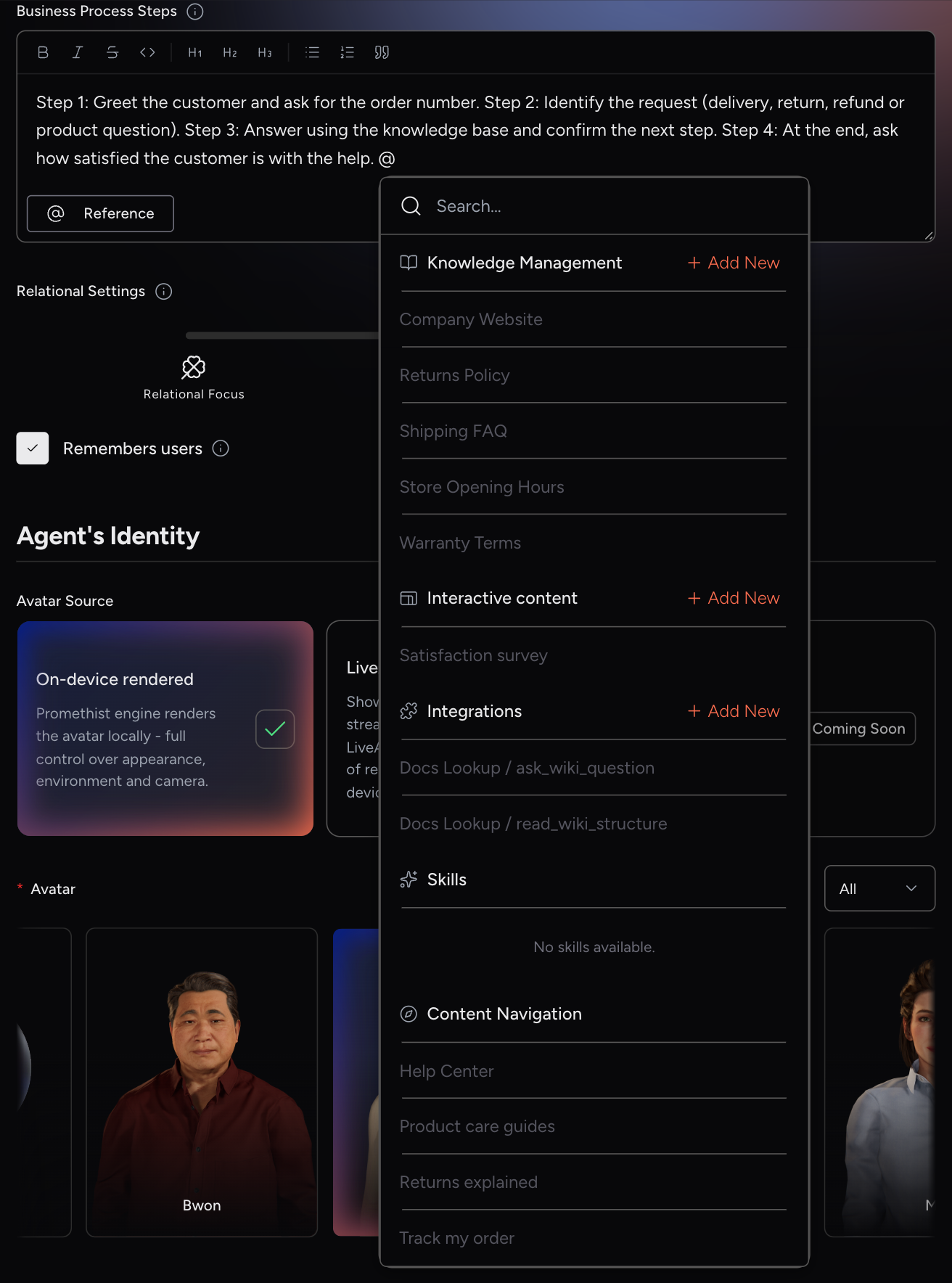
The reference is stored as text:
Knowledge |
|
Interactive content |
|
Integration (one MCP tool) |
|
Skill |
|
Content navigation |
|
For a non-global MCP integration, reference each tool the agent needs. The menu inserts the per-tool reference for you.
|
Even for Global assets, a reference with a short instruction helps the agent use the asset at the right moment, for example: "When the user asks about pricing, use @knowledge:pricing_faq;". |
|
The semicolon at the end is part of the reference. If you type a reference by hand, don’t leave it out. |