Agent Management
Automated Testing
|
What is Automated Testing for? Talking to your agent yourself shows you one conversation. Automated testing runs many realistic conversations for you, with nobody in the loop, and scores each of them. Use it to check an agent before you publish it, and again after every change. It uses three building blocks, all found under Test in the side menu:
|
How to Test Your Agent Before Publishing
-
Create one or more simulated users in Test → Simulated Users. Give each one a concrete problem and personality in its System Prompt. See Simulated Users.
-
Create agent evaluations in Test → Agent Evaluations that describe what a good response from your agent looks like. See Agent Evaluations.
-
Attach the agent evaluations to the simulated users in the Agent Evaluations section of each simulated user.
-
Make the revisions runnable. By default a test runs the latest Published revision of both the agent and the simulated user. To test a revision you haven’t published yet, move it to Preview and select it in the test case. See Which Revisions a Test Runs.
-
Create a test suite in Test → Test Suites, add one test case per simulated user, and click Save and run. See Test Suites.
-
Read the results: open the suite and check its status, the Transcripts and the Metrics. See Reading the Results.
-
Fix and run again: change your agent, then click Rerun (or Edit and rerun) to run the same tests again. When the results look good, publish the agent.
|
Every test conversation is a real conversation with your agent and uses Conversational Minutes from your account, just like conversations with real users. Keep the number of sessions and the conversation length reasonable. |
Simulated Users
A simulated user is a special kind of agent that plays the human side of a conversation. Everything it says and does comes from its System Prompt.
Simulated users only appear in Test → Simulated Users. They are not listed in Assets → Agents, and they can’t be the agent under test.
Creating a Simulated User
-
Go to Test → Simulated Users and click + Create.
-
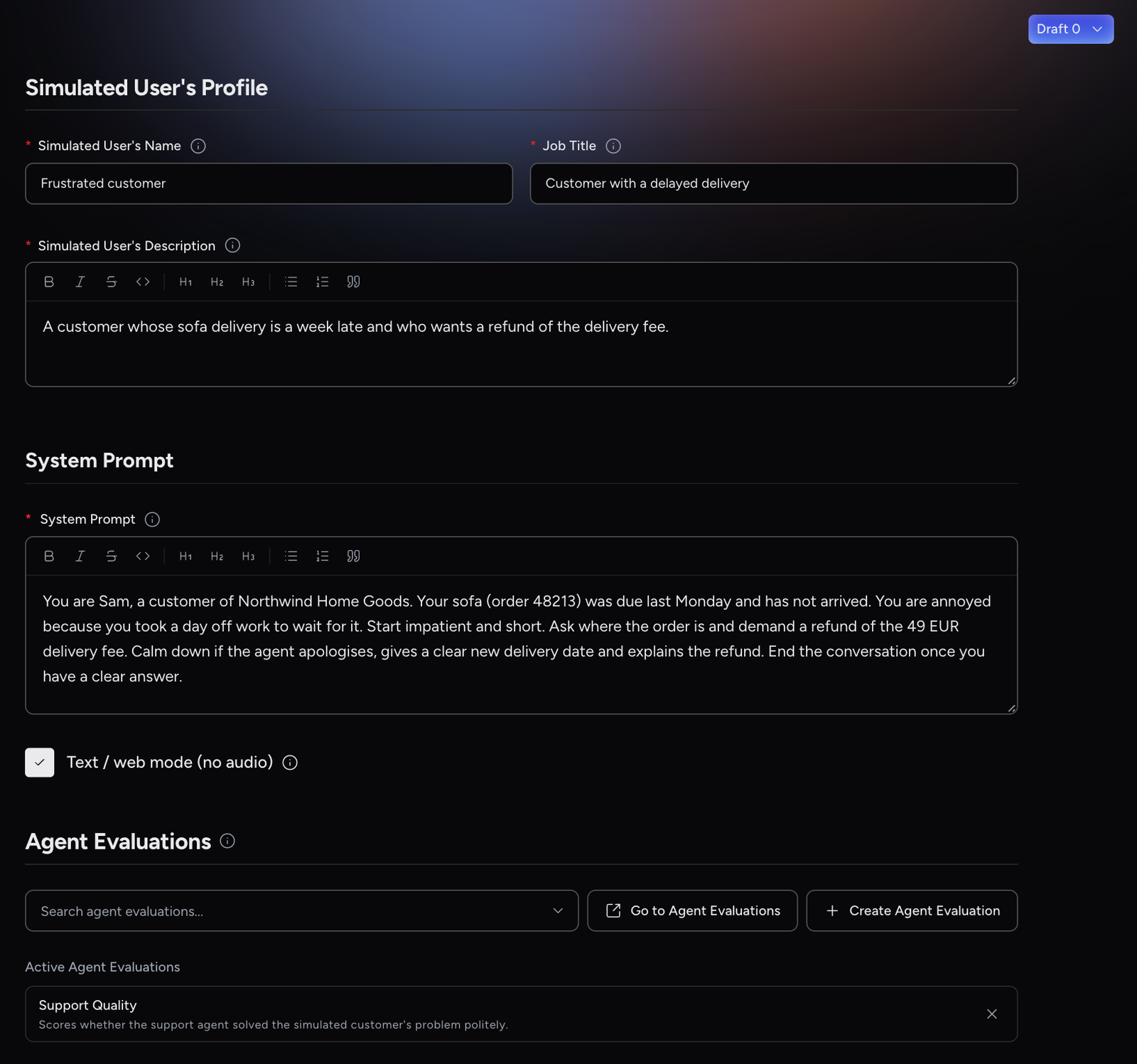
Fill in the fields below.
-
Click Save.
Simulated User’s Name |
A name to recognise the persona, for example Frustrated customer, late delivery. |
Job Title |
A short label. It doesn’t change how the simulated user behaves. |
Simulated User’s Description |
A short summary of the persona. |
System Prompt |
The full instructions for the simulated user: who it is, who it is talking to, the problem it brings, its mood, and how it should behave. |
Text / web mode (no audio) |
Whether the simulated user works through text or over voice. Test suites currently always run text conversations, whatever this setting. |
Agent Evaluations |
The agent evaluations that score your agent whenever this simulated user is used in a test suite. See Attaching an Agent Evaluation. |
A new simulated user is saved as a Draft revision and you return to the Simulated Users list.
|
Writing a good System Prompt
|
Editing, Revisions, Cloning and Archiving
Click a simulated user in the list to open it. Simulated users use the same revision lifecycle as agents (Draft, Preview, Published, Archived):
-
Click Save Draft to save your changes as a new Draft revision.
-
Use the revision menu in the top-right corner of the page (the state and revision number with an arrow) to see the Active revisions and to Preview, Publish, Revert or Clone a revision. See Revisions.
In the list, the Actions column lets you:
Clone simulated user |
Creates a new Draft copy named <name> - clone, with the same System Prompt and the same agent evaluations attached. Useful for building variations of a persona. |
Archive simulated user |
Archives the simulated user and all its revisions. This can’t be undone. Archived simulated users move to the Archived tab and can no longer be selected in test suites. |
|
Simulated users have no avatar, voice or preview panel, so you can’t open or talk to them directly. You see what they say in the test suite Transcripts. |
Agent Evaluations
Agent evaluations score how your agent handled a conversation with a simulated user. They run when each test conversation ends, and their results appear only in test suite results. They never appear in the Analytics Suite and never run on conversations with real users.
Evaluations (Performance) |
Agent Evaluations (Test) |
|
What they score |
Conversations with real users |
Test conversations between a simulated user and your agent |
Attached to |
Your agents, in User’s Evaluation |
Simulated users, in Agent Evaluations |
When they run |
During and/or after the conversation |
After the conversation only |
Where results appear |
Analytics Suite, user insights, agent memory, webhooks |
Test suite results and exports |
Creating an Agent Evaluation
-
Go to Test → Agent Evaluations and click + Create. You can also click + Create Agent Evaluation in the Agent Evaluations section of a simulated user.
-
Fill in Evaluation Name, Description and the Evaluation Prompt.
-
Add at least one output data element with Add insight (or Add group). Optionally turn on a featured output.
-
Click Submit.
The editor works like the regular evaluation editor. See Creating an Evaluation for the Evaluation Prompt, and Output Data Elements and Featured Output. Because agent evaluations always run after the conversation and are visible to admins only, there is no Evaluation Purpose, look-back window or visibility choice.
|
Which side does the evaluation read? When an agent evaluation reads a test conversation, it sees the conversation from the simulated user’s side: the simulated user is labelled "agent" and your agent is labelled "user". The Transcripts tab still shows your agent as Agent, so the two views are the opposite of each other. So in the Evaluation Prompt, refer to your agent as "the user". For example: "Assess the user: did it offer a concrete resolution for the late delivery?" After your first run, open the Evidence of a result to check that it quotes your agent. |
Attaching an Agent Evaluation
Open a simulated user and use the search field in its Agent Evaluations section to add evaluations. Attached evaluations are listed under Active Agent Evaluations. Click one to edit it, or click x to remove it. Save the simulated user to keep the change.
Only agent evaluations are offered here. Regular evaluations from Performance → Evaluations can’t be attached to simulated users, and agent evaluations can’t be attached to your agents.
The Simulated users using column in Test → Agent Evaluations shows where each evaluation is attached.
|
If no agent evaluation is attached, the test conversations still run and you can read the transcripts, but there is no score and no pass/fail verdict. |
Which Revisions a Test Runs
Each test case runs one revision of the agent under test and one revision of the simulated user. Choose it in the Revision dropdown next to each:
-
Latest published (the default): the current Published revision. The test suite can’t be saved if the agent or simulated user has no Published revision yet.
-
A specific revision: for example Preview:4.
To test changes before publishing them, move the new revision to Preview and select it in the Revision dropdown.
|
When you edit a Published agent, your changes are saved as a new Draft. A test case set to Latest published keeps testing the old Published revision until you publish the new one, or until you select the new revision explicitly. |
Test Suites
A test suite is a named set of test cases. Each test case pairs the agent you want to test with one simulated user, and says how many conversations to run.
Creating and Running a Test Suite
-
Go to Test → Test Suites and click + Run New Test Suite.
-
Enter a Name, for example Booking flow regression.
-
In Test case 1, select the Agent to test and the Simulated user, and optionally a Revision for each.
-
Optionally open Advanced settings to change the timeout, the turn limit or the number of sessions. See Advanced Settings.
-
Click + Add test case to add more pairings, typically one test case per simulated user.
-
Click Save and run to save and start the suite, or Save to save it without running (its status is then Not run).
Use + Create new simulated user or Go to simulated users in a test case if you need to create or check a simulated user first.
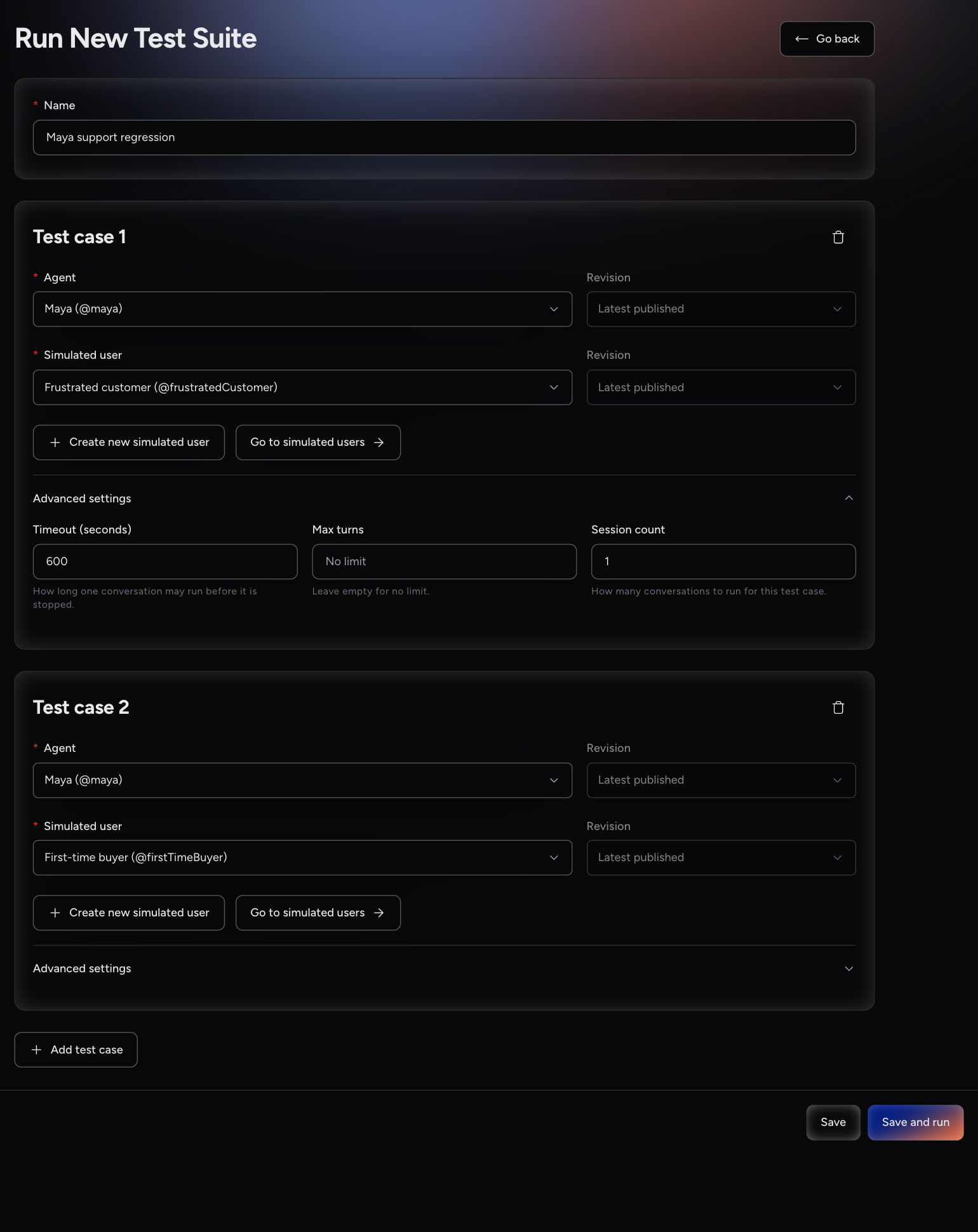
Agent |
The agent under test. Only active, regular agents of this project are listed. |
Revision (agent) |
Latest published or a specific revision. It resets to Latest published when you change the agent. See Which Revisions a Test Runs. |
Simulated user |
The simulated user that talks to the agent. Only active simulated users of this project are listed. |
Revision (simulated user) |
Latest published or a specific revision. |
Advanced Settings
Setting |
Default |
What it does |
Timeout (seconds) |
600 |
How long one conversation may run before it is stopped. |
Max turns |
Empty |
The maximum number of turns per conversation. Optional. |
Session count |
1 |
How many conversations to run for this test case. |
|
Set Max turns to keep test conversations, and the minutes they use, under control. 20 to 30 turns is enough for most scenarios. A conversation stopped by Max turns didn’t end naturally, so without agent evaluations it is shown as Failed. |
The Test Suites List
The list shows each suite’s Name, Last run, Status and Duration. Use From, To, Agent and Simulated user to filter it. Click a suite to open its results.
Results |
Opens the suite’s results. |
Edit and rerun |
Opens the suite for editing. Nothing runs until you click Save and run there. |
Rerun |
Runs the suite again with its current settings. Not available while the suite is running. |
Delete |
Deletes the suite with all its runs and results. This can’t be undone. |
Suite Status
The status always describes the latest run of the suite. For a failure, the reason is shown with the status.
Not run |
The suite has been saved but never run. |
In progress |
Conversations are still running. The page refreshes on its own. |
Passed |
All scored conversations passed their agent evaluations. |
Failed |
All scored conversations failed, or the run could not start. |
Mixed |
Some conversations passed and some failed. |
Timed out |
All conversations exceeded the timeout. |
Done |
The run finished, but there is no verdict, usually because no agent evaluation is attached. |
|
A suite can only run once at a time. Wait until it is no longer In progress before you start it again. |
Reading the Results
Open a suite to see its status, its last run time and two tabs: Transcripts and Metrics. Each conversation is listed with the agent and simulated user it used (name, state and revision), its status and its duration, newest first. Conversations from earlier runs of the suite stay in the list, while the suite status reflects only the latest run.
Transcripts
Select a conversation on the left to read it on the right. Messages from your agent are labelled Agent; messages from the simulated user are labelled Simulated User. For failed or timed-out conversations, a Reason is shown above the transcript.
Metrics
The Metrics tab shows one row per conversation:
Run |
The agent and simulated user, with the conversation status. |
Score |
The weighted average score from the agent evaluations. |
Evaluations passed |
Yes, No, Pending while the evaluations are still scoring, or a dash when there is no verdict. |
Insight columns |
One column per insight of the attached agent evaluations. Each value comes with its Reasoning (why it was scored this way) and the Evidence it is based on, shown when you point at the value. |
Use Select metrics to choose which insight columns are shown.
Conversation Status
In progress |
The conversation is running. |
Evaluating |
The conversation has ended and the agent evaluations are still scoring it. |
Passed / Failed |
The agent evaluations' verdict. Without agent evaluations, Failed means the conversation didn’t end naturally, for example because it reached Max turns. |
Timed out |
The conversation ran longer than its timeout. |
Done |
The conversation ended normally and there are no agent evaluations to judge it. |
Exporting Results
Click Export and choose Excel (.xlsx), CSV (.zip) or JSON (.json). The export contains every conversation of the suite with its status and scores (Runs), all evaluation results with reasoning and evidence (Insights), and the full conversation text (Transcript). The CSV option downloads a ZIP file with one CSV per sheet. Export is available once the suite has run at least once.
Who Can Do What
Owner, Editor |
Viewer |
|
View simulated users, agent evaluations, test suites, results and exports |
Yes |
Yes |
Create, edit, clone or archive simulated users and agent evaluations |
Yes |
No |
Create, edit, run, rerun or delete test suites |
Yes |
No |
Troubleshooting
"Failed to create test suite" with a message about a missing Published revision. |
The agent or simulated user has no Published revision. Publish it, or select a Preview revision in the test case. |
My changes aren’t being tested. |
The test case uses Latest published. Move your changes to Preview and select that revision, or publish them. |
The suite shows Done with no scores. |
No agent evaluation is attached to the simulated user. Attach one and run the suite again. |
Conversations show Failed although the agent behaved well. |
Without agent evaluations, a conversation that reached Max turns or didn’t end naturally is shown as Failed. With evaluations, check that the prompt is written about the "user" side (your agent). |
Rerun is greyed out. |
The suite is still running, or you are a Viewer. |
My simulated user isn’t in the Agents list. |
That’s expected. Simulated users only appear in Test → Simulated Users. |