End User Access
Web Client
Overview
The PromethistAI Web Client runs Relational Agents in a browser with no installation. It is the same client as the mobile apps, with the same home screen, agent screens and settings, reached through a URL instead of an app store.
First Launch
The first time you open the Web Client, it asks you to consent to data processing before continuing:
-
Tick I consent to the processing of my data as described in the Privacy Policy to confirm your consent and that you are of legal age to give it
-
Click Continue
Links to the Privacy Policy and Terms and Conditions are shown alongside the checkbox, and again later under Settings → About.
Microphone Permission
When you start your first conversation, your browser asks for permission to use your microphone. Choose Allow. Without it the agent can’t hear you, and you will have to turn the permission on yourself in your browser settings. See The agent can’t hear me for the steps.
Getting Started
Open an Agent from the Platform
-
From Account → Projects, open the project that contains your agent.
-
In the project sidebar, click Assets → Agents and select the agent.
-
Click the Open in new Tab button.
-
The agent opens in a new browser tab in the Web Client.
The agent takes a few seconds to arrive, and the loading screen above is shortened. In practice you also see a grey placeholder figure while the 3D scene loads. That placeholder is normal, not a failure.
|
Click the arrow next to Open in new Tab for Copy URL and Copy ref. See Test Your Agent for details. |
Open a Whole Project
From a project in the Platform, click Open Project. The project opens in the Web Client and is added to your Projects list, so you can reach it again without going back to the Platform.
Agent and Project Addresses
Agents and projects use different URL formats:
-
A published agent:
https://eu.promethist.ai/a/{agentRef} -
A specific revision:
https://eu.promethist.ai/a/{agentRef}.{revision} -
A project:
https://eu.promethist.ai/p/{projectRef}
For example, https://eu.promethist.ai/a/ethan_6apc1 opens the published Ethan agent, and https://eu.promethist.ai/a/antonin_a07fk.6 opens revision 6 of Antonin.
The agent reference is the value in the Reference column of the Platform’s agent list, without the leading @. For example, @ethan_6apc1 becomes ethan_6apc1.
A URL with no revision number always opens the agent’s Published revision. Adding a number after the dot opens that specific revision instead. The numbers are shown in the Platform against each revision, for example Draft:17.
See Revisions for what each revision state means.
Replace eu with us for agents and projects hosted in the US region.
Projects and Sign-in
Click the project logo to open the Projects panel. It lists the projects you’ve added and lets you add and remove them. At the top, above the list, is the single account you are signed in with, or a Sign in button when you are not. Unlike the mobile app, you do not sign in to projects one at a time.
See Authentication & Projects for the full model, and Adding a Project for how to add one by reference.
Agent Detail
Opening an agent shows its visual, name, and description, along with a button to start talking and three tabs:
- Description
-
What the agent is for, as written by whoever created it.
- Insights
-
Scores from any user-facing evaluations the agent has enabled. See Insights.
- History
-
Your earlier evaluation results for this agent.
An Agents section lists the other agents available to you; use the star on a card to keep one handy. The QR button opens a scanner for adding an agent by code.
Reporting a Problem
If an agent says something wrong, odd or inappropriate, you can report it from the conversation.
-
Open the chat view and press and hold the text of the message you want to report. A small menu appears with Copy and Report an issue.
-
Choose Report an issue.
-
Under Type of problem, choose what went wrong, then describe it under Please describe the issue and click Submit.
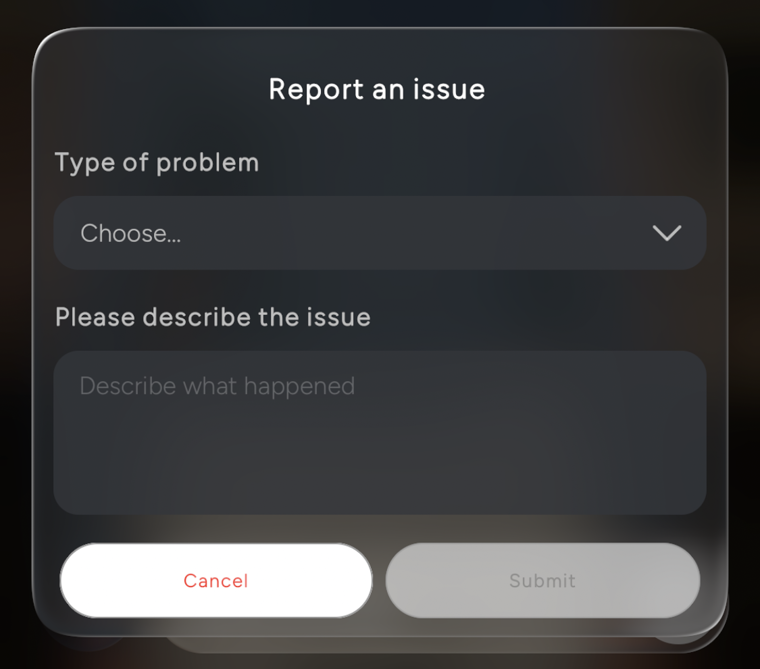
Reporting this way flags the exact message you picked, so the people who look into it know what the agent said. For problems that are not about one message, use Settings → Support → Report an issue instead. See the Quick Start for the whole conversation screen.
Settings
Open Settings from the home screen, or from the conversation controls while talking to an agent.
The Web Client has the same settings as the mobile apps. See Settings & Troubleshooting.
Permissions
Microphone Access
The Web Client needs your microphone so the agent can hear you. Your browser asks for permission the first time you start a conversation. If you declined or blocked it, see The agent can’t hear me.
Insights
When an agent has at least one user-facing evaluation enabled, signed-in users see an Insights tab on the agent screen. It shows a card for each insight type with the user’s average, lowest and highest scores, and a bar chart with one bar per conversation.
Until you sign in to that agent’s project, the tab shows Please log in to view analytics for this agent.
Learn more about Insights.
Technical Requirements
WebGPU
The Web Client renders through WebGPU. Your browser must support WebGPU and have hardware acceleration enabled.
To check your browser, open chrome://gpu in Chrome or Edge, or visit webgpureport.org in any browser. General support status across platforms can be observed in this survey.
Supported Platforms
-
Windows: desktop browsers (Chrome, Edge)
-
macOS: Chrome, Edge, or Safari
-
iOS: Safari with WebGPU support
-
Android: browsers with WebGPU support
-
Linux: desktop browsers with WebGPU support
Best effort:
-
Samsung Android devices: WebGPU support on Samsung devices cannot be guaranteed. Functionality may be limited or unavailable.
Troubleshooting
The agent can’t hear me
The browser only asks for the microphone once. If you chose Block or closed the question, the agent can’t hear you, and you have to allow the microphone yourself. Then reload the page and start the conversation again.
Chrome, Edge |
Click the icon at the left of the address bar (the lock or settings icon), open Site settings or Permissions, set Microphone to Allow, and reload the page. |
Safari (Mac) |
In the Safari menu choose Settings, open Websites and then Microphone, and set this website to Allow. |
Firefox |
Click the microphone icon in the address bar, remove the blocked entry, reload the page and click Allow when asked again. |
If it still doesn’t work, your computer itself may be blocking the browser:
-
Mac: open System Settings → Privacy & Security → Microphone and turn on your browser.
-
Windows: open Settings → Privacy & security → Microphone and make sure microphone access is on for apps and for your browser.
Also check that the right microphone is selected in your browser and that nothing else, such as a video call, is using it.
Something else is wrong
If you encounter other issues, open your browser’s developer console to diagnose them:
-
Open developer tools (typically
F12, or right-click and choose Inspect). -
Navigate to the Console tab.
-
Look for errors related to WebGPU, audio, or network connectivity.
Common issues include:
-
WebGPU unavailable or disabled in the browser
-
The microphone is blocked. See The agent can’t hear me.
-
Network connectivity problems
|
The message |