End User Access
Quick Start
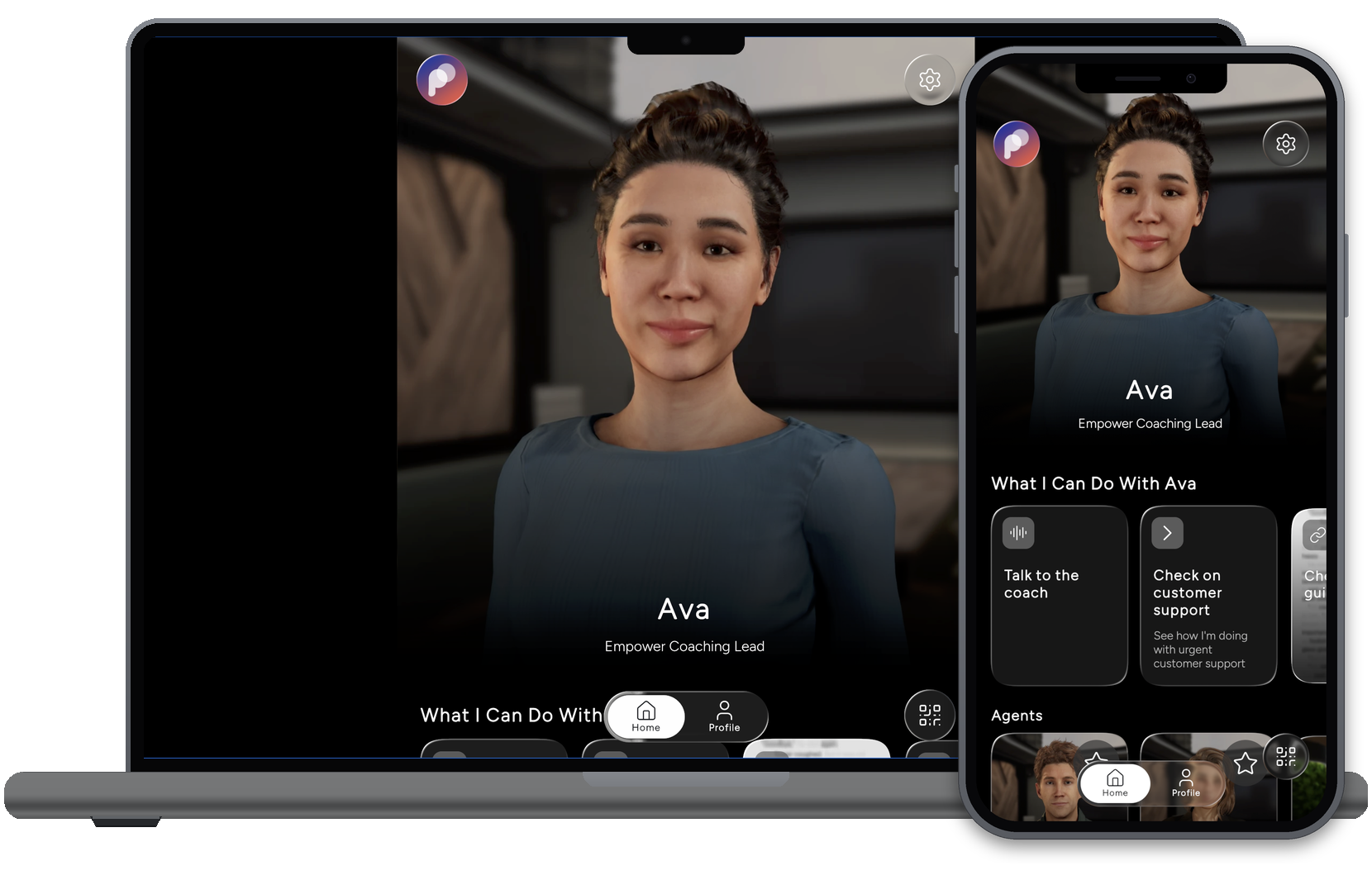
This page walks through what you see when you open a PromethistAI agent, and what each part of the screen does. It is the same app on a phone and in a browser, and most of the screens below are from the phone.
You spend your time in two places. An agent page is where you talk to one agent and see how you did. The home screen lists every agent in a project, which is the group an agent belongs to.
The agent page
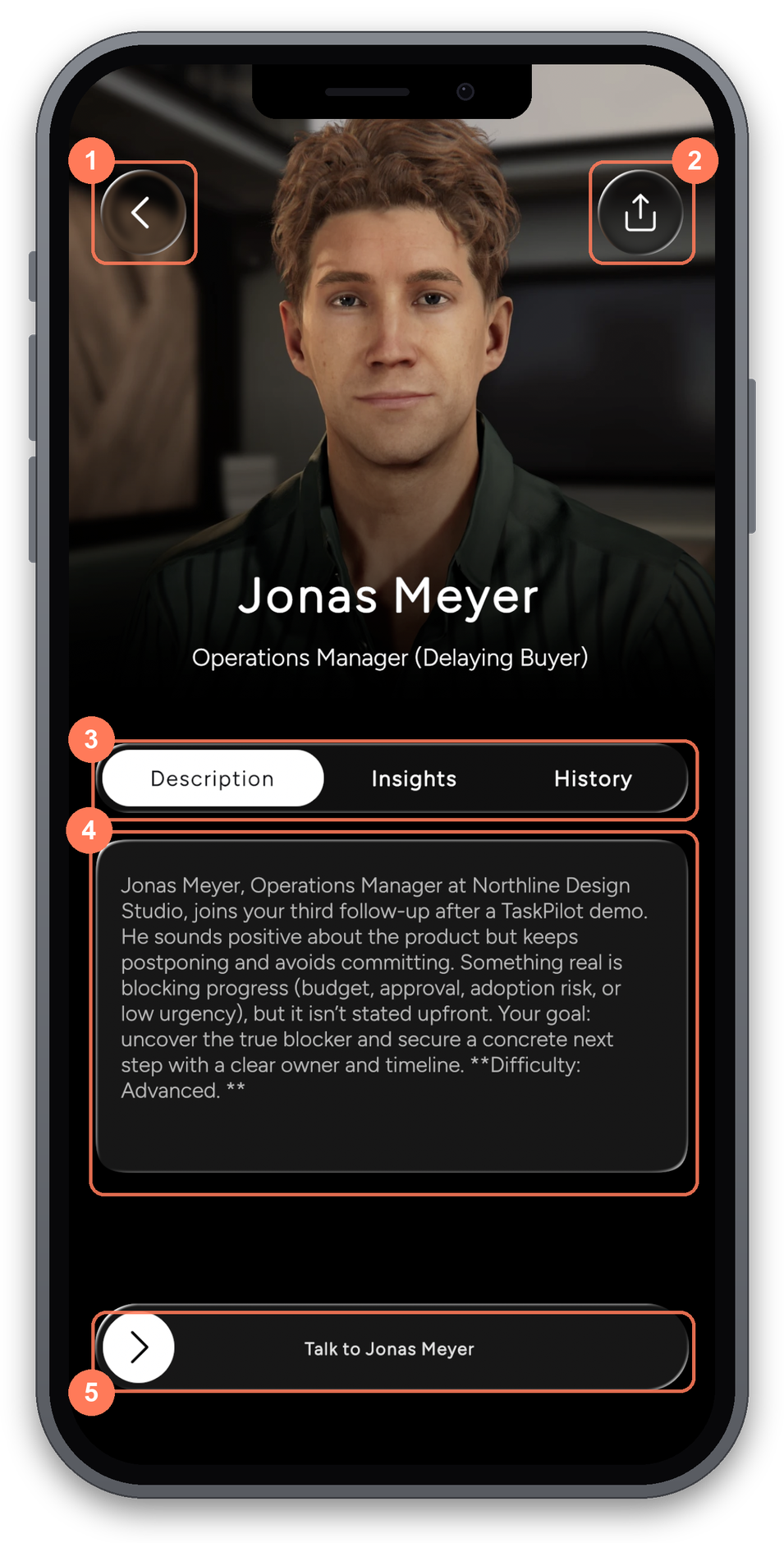
-
Back — returns to the home screen.
-
Share — sends a link to this agent.
-
Description, Insights and History — what the agent is for, how your conversations scored, and your earlier results.
-
What this agent does — written by whoever set the agent up.
-
Talk to the agent — starts the conversation.
An agent link opens this page, and so does selecting an agent on the home screen.
In a conversation
-
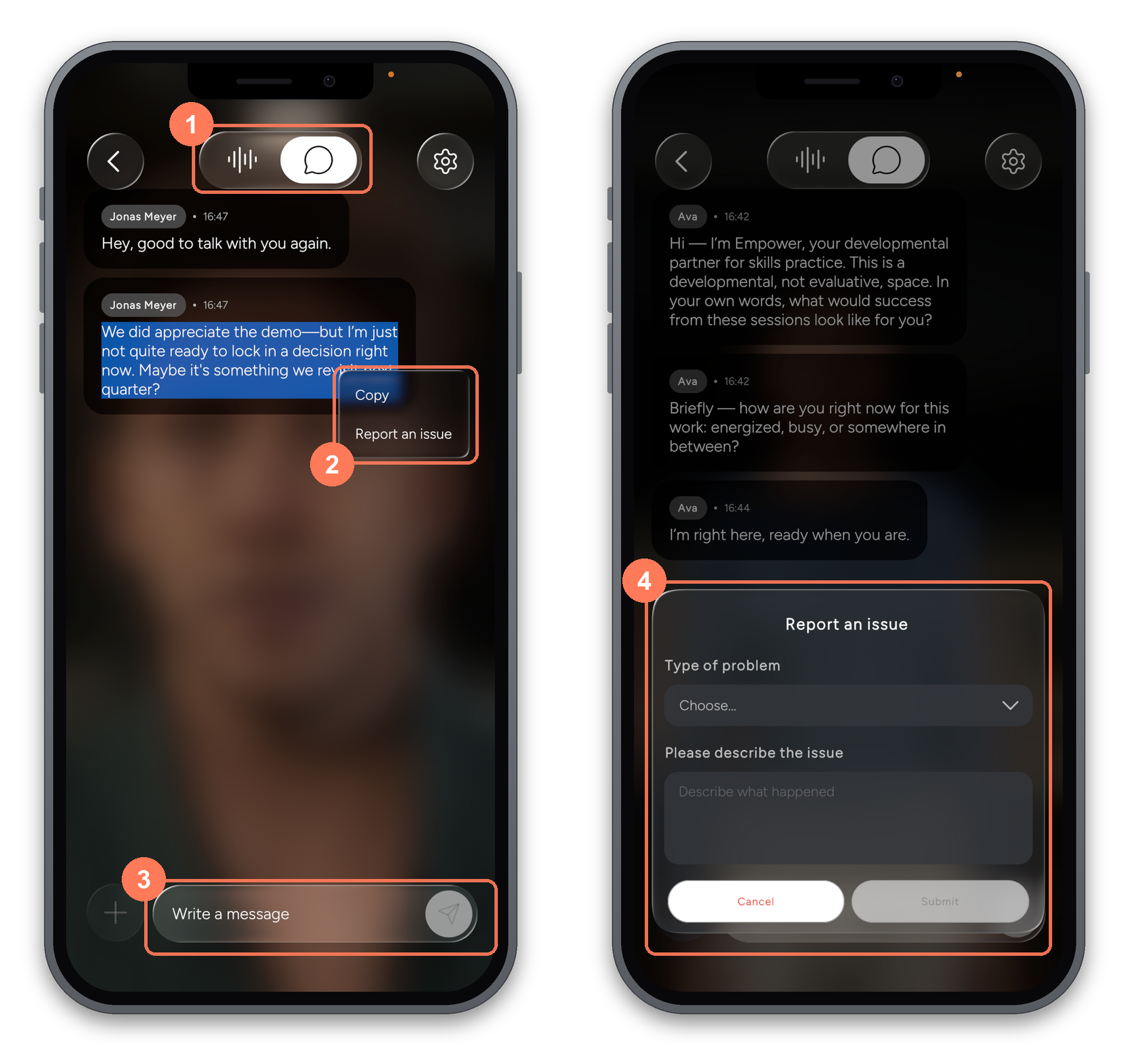
Voice or chat — switch between speaking to the agent and typing to it.
-
Press and hold a message — gives you Copy and Report an issue.
-
Write a message — type here when you are in the chat view.
-
Report an issue — pick a Type of problem, describe what happened, and submit.
Switching to chat keeps the agent on screen behind the messages, and switching back picks the conversation up where it was.
Switching to chat keeps the agent on screen behind the messages, and switching back picks the conversation up where it was.
Reporting this way flags the message you picked. There is also a general Report an issue under Settings, for problems that are not about one thing the agent said.
History and Insights
-
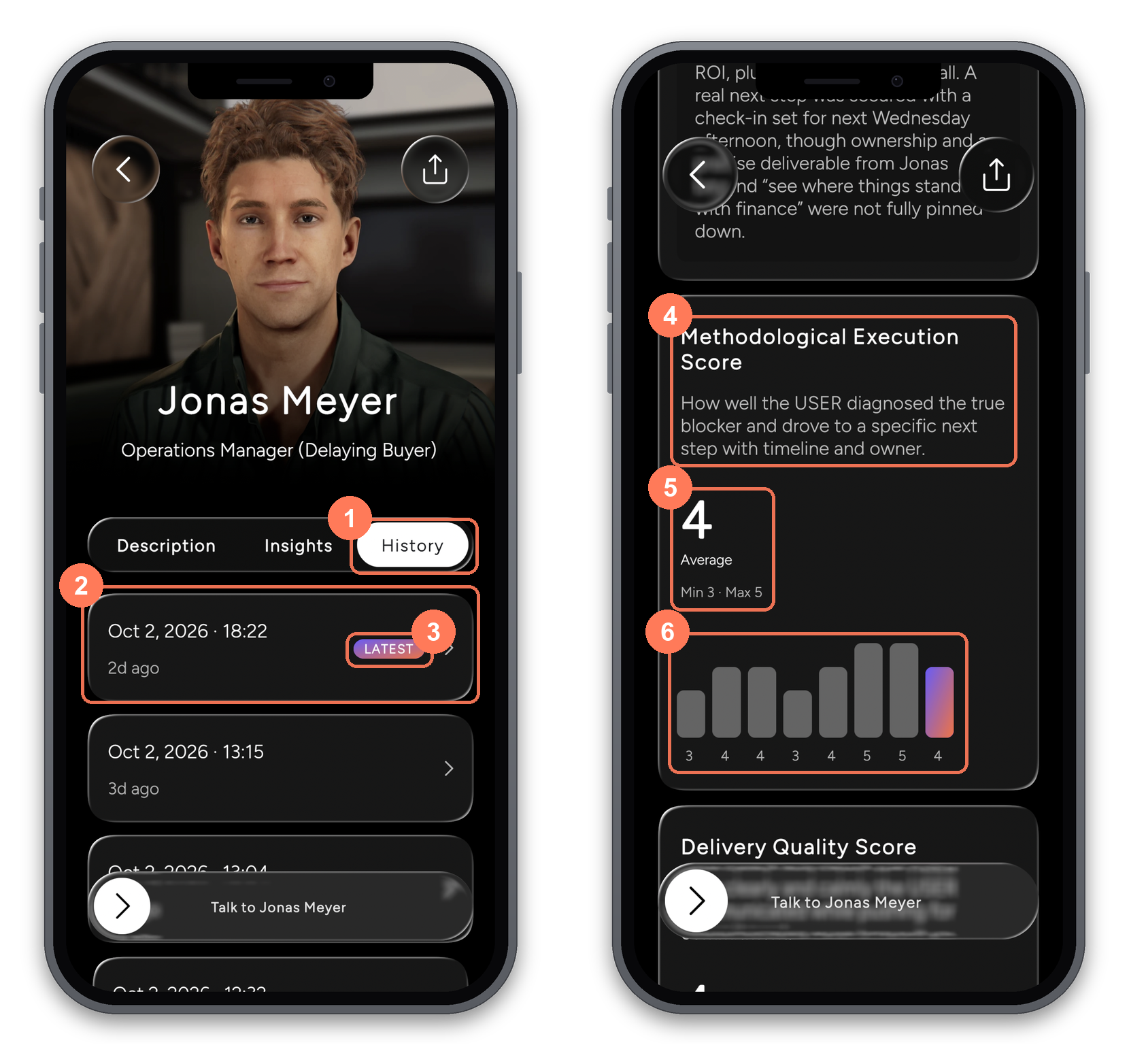
History — your earlier results for this agent, newest first.
-
A result — the date and time of the conversation it came from.
-
Latest — marks your most recent one.
-
What is being measured — the name of this measure, and what it looks for. Every agent measures different things, so this one is just an example.
-
Your average — with your lowest and highest so far.
-
Each attempt — one bar per conversation, oldest first. The coloured bar is your most recent.
These only appear if the agent has been set up to score your conversations, and only once you are signed in. They cover your own conversations, and nobody else sees your results. Open a result in History to read the full reasoning behind it.
|
What gets measured is decided by whoever set up the agent. A different agent will show you different things, so treat what you see above as an example rather than a fixed list. If you set agents up yourself, see Evaluations. |
The home screen
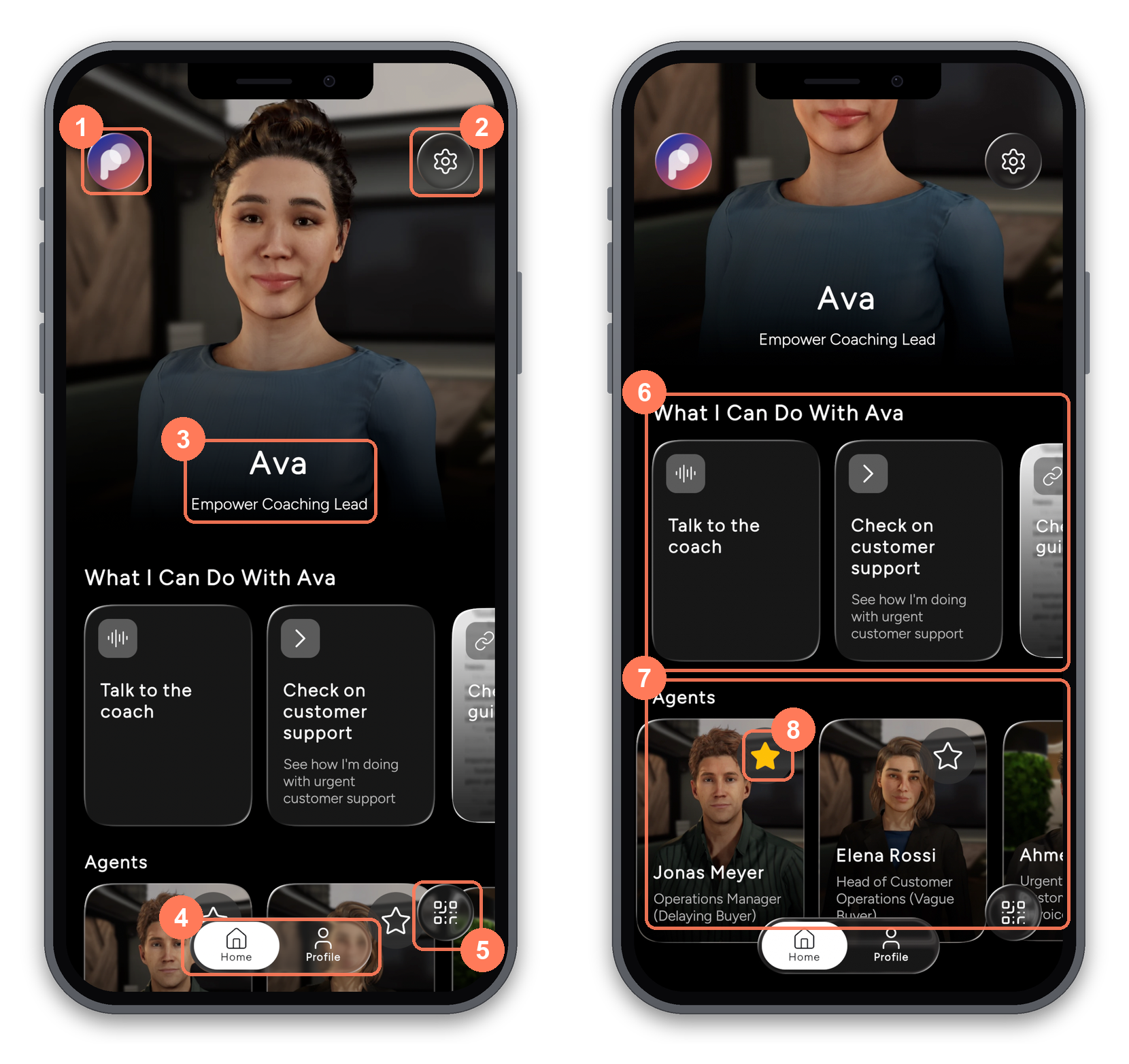
-
Projects — the project you are in. Select it to open your project list.
-
Settings — language, interface size, picture quality, and how the agent listens.
-
The featured agent — the agent this project leads with, with its name and role.
-
Home and Profile — Home is this screen. Profile is where your coaching summary builds up.
-
Scan a QR code — adds an agent from its code.
-
What you can do here — the options set up for you in this project.
-
Agents — every agent in this project that you can open.
-
The star — tap it to keep an agent handy. Filled means you have starred it, outlined means you have not.
The first screen above is the top of the home screen. The second is the same screen scrolled down.
A featured agent is optional. Without one, the project’s own name and description fill the top of the screen instead.
|
Worth knowing
|
The Profile tab
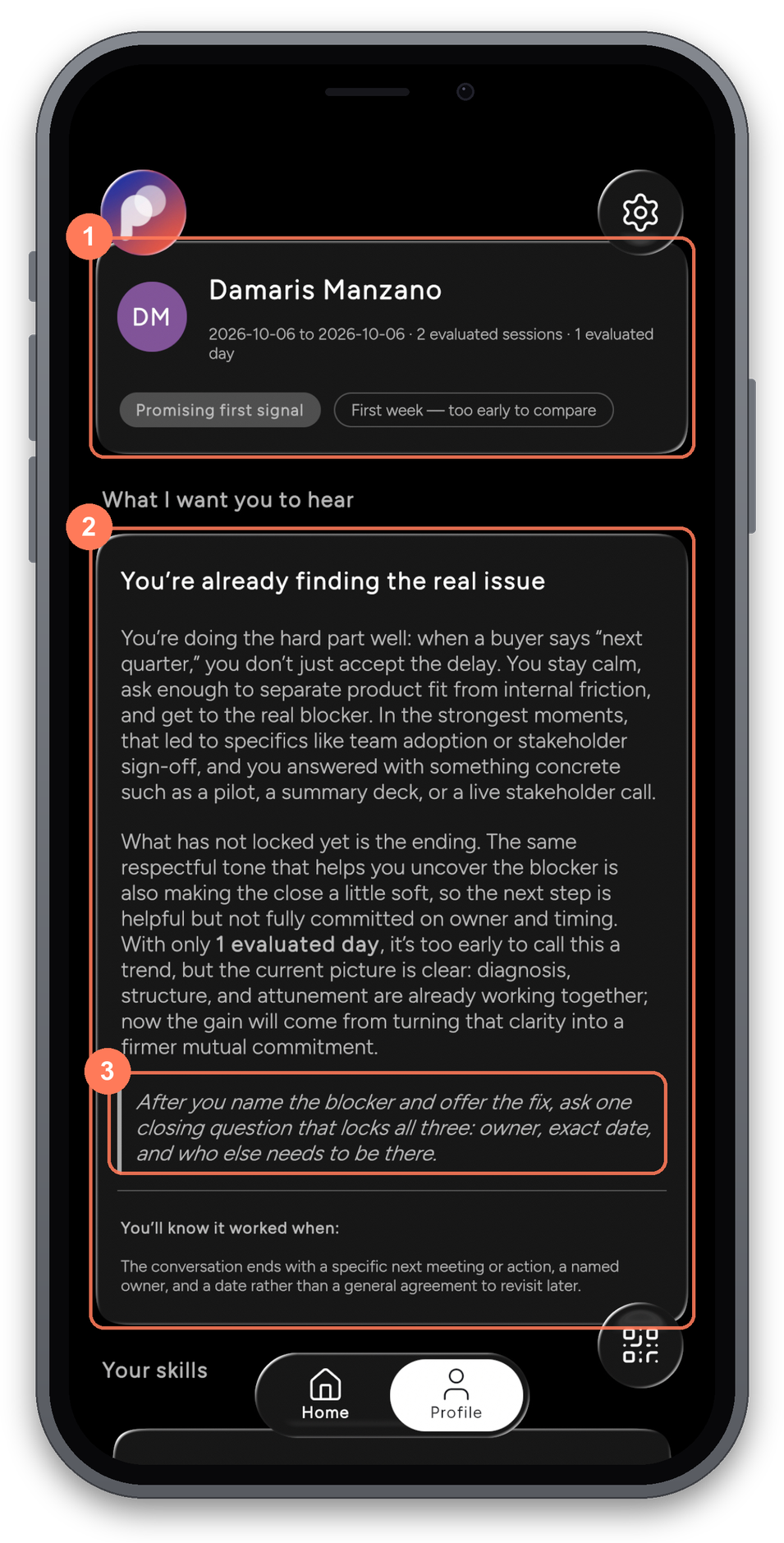
-
Your summary — the period covered, how many sessions were evaluated and over how many days, and a short verdict on where you are.
-
What I want you to hear — written feedback on how you are doing, rather than a score.
-
Something to try — one concrete change, followed by a line telling you how you will know it worked.
Scroll down for Your skills, where each skill is named and described, with how it is trending and your score out of six.
|
Nothing on your Profile yet? The Profile tab only fills with results from evaluations that have User Facing turned on, because those are the results shared with the user. It also belongs to the Empower package: in a project set to Engage, the Profile tab doesn’t show results. See Where Results Go and the Package setting in Project Settings. |
|
Like Insights, what appears here was decided by whoever set the agent up, so the skills and the wording you see are an example. The tab stays empty until your conversations have been scored. |
The Projects panel
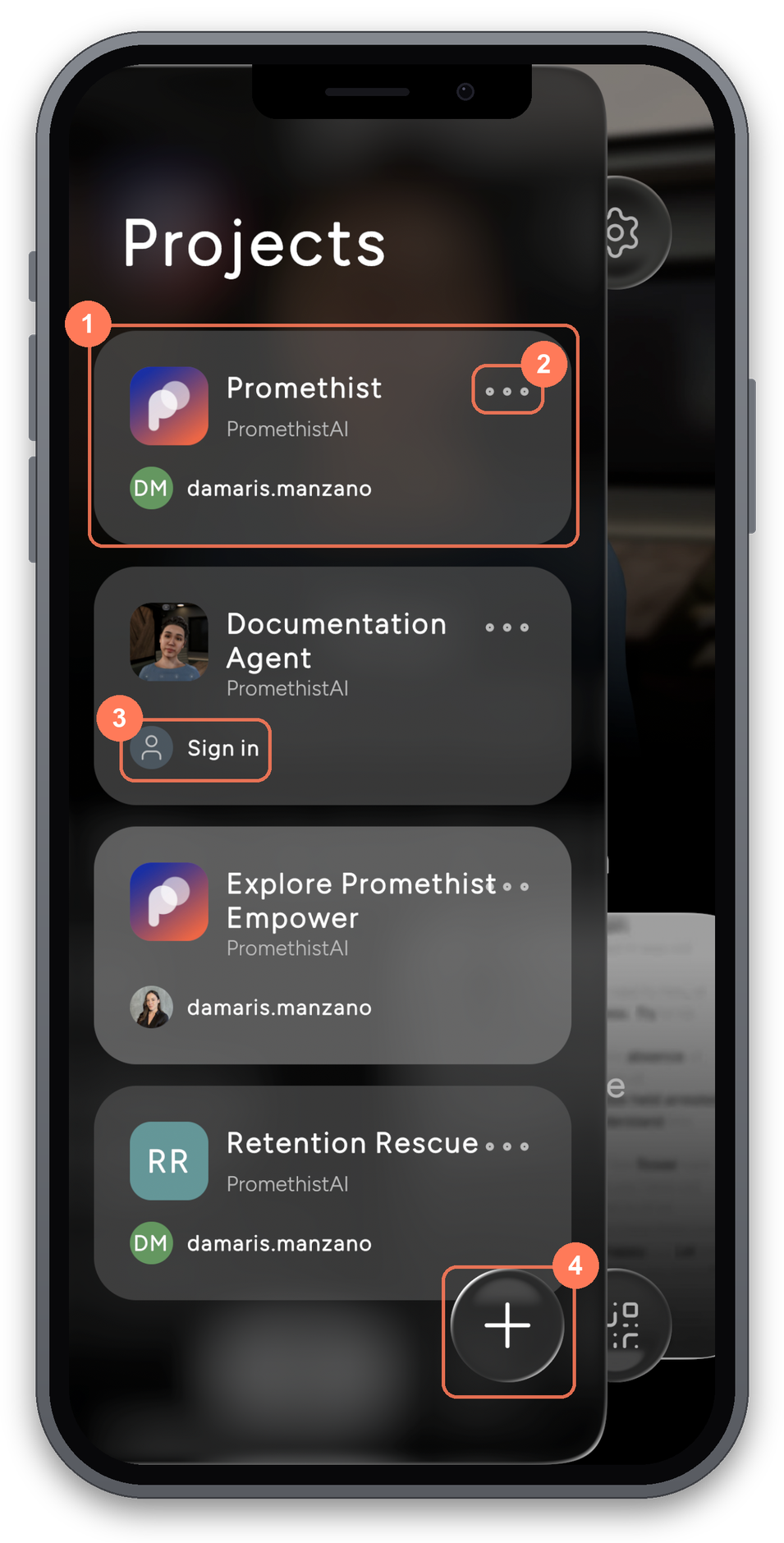
-
A project — select one to switch to it. Its agents and branding replace what is on screen.
-
The project menu — opens Share and Remove for that project. Removing takes it off your list, and you can add it back later.
-
Sign in — shown on projects you are not signed in to. The rest show your account.
-
Add a project — adds another project to the list.
This panel lists the projects you have added.
Share on the project menu hands the project to someone else using your phone’s usual share options.
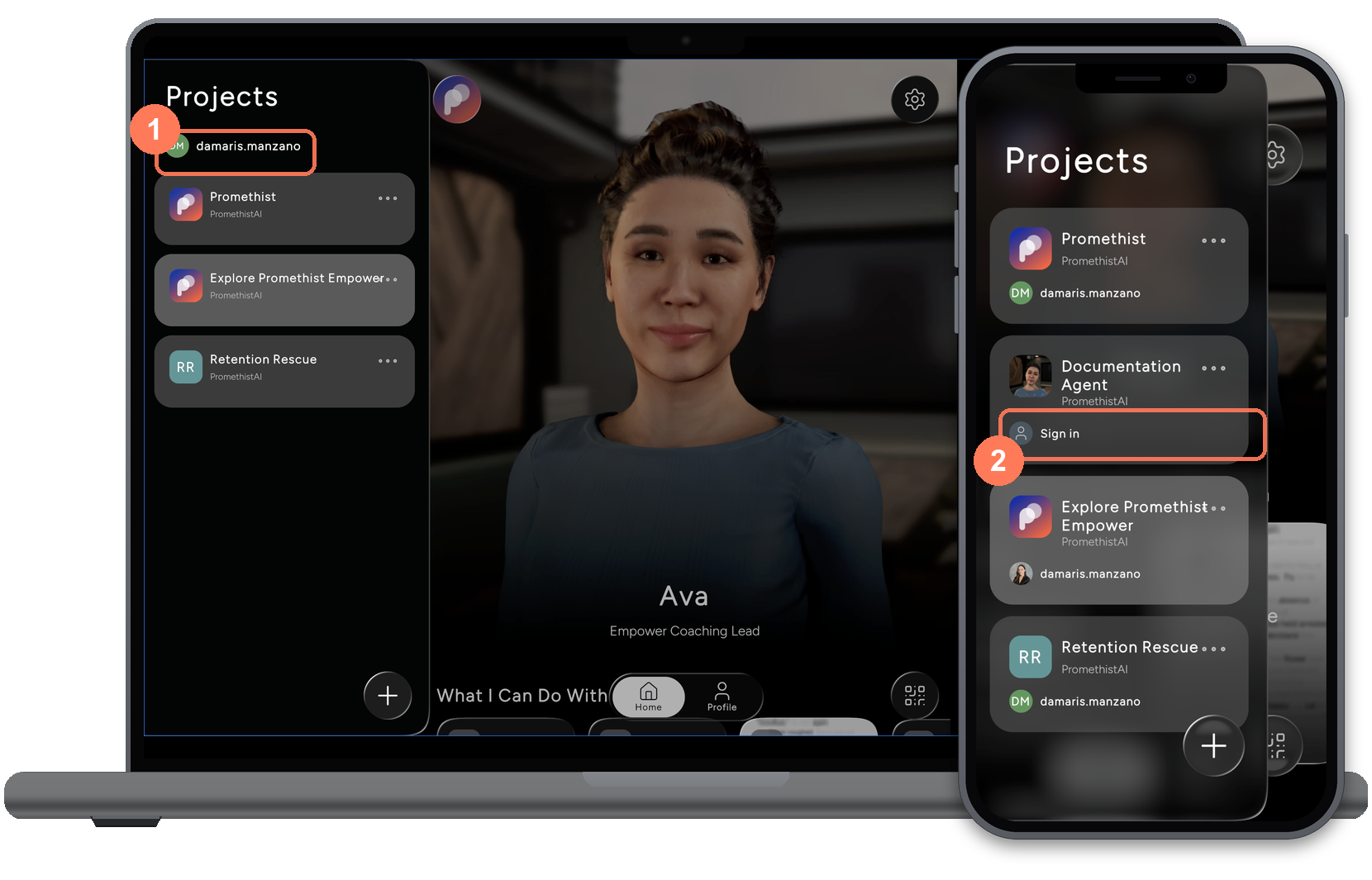
-
In a browser — one account sits at the top of the panel and covers every project in the list.
-
On the phone — each card carries its own account, so you sign in to projects one at a time.
Share on the project menu hands the project to someone else using your phone’s usual share options.
See Authentication & Projects for signing in and adding projects.
Settings
-
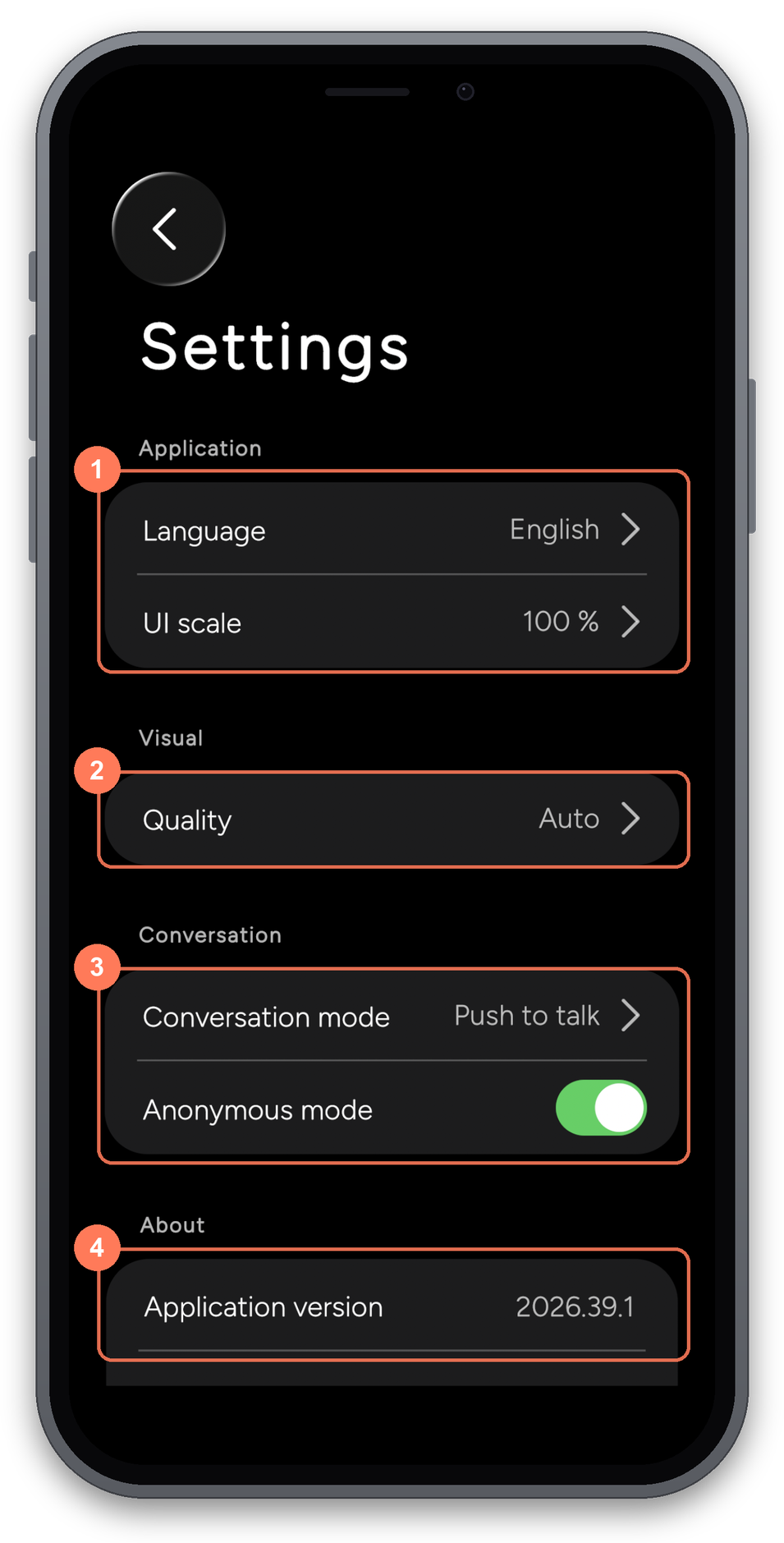
Application — Language is the language you speak to agents in, not the interface. UI scale resizes everything on screen.
-
Visual — Quality trades detail for smoothness. Lower it if the picture stutters.
-
Conversation — Conversation mode sets how the agent listens. Anonymous mode keeps conversations off your account.
-
About — the app version, and links to the terms, privacy policy and data processing notice.
Below About, Support has Report an issue and Share diagnostic data. Quote the version number from About if you contact support.
See Settings & Troubleshooting for what each setting does in detail.
Where to go next
-
Settings & Troubleshooting — every setting, and fixes for common problems
-
Authentication & Projects — signing in, and adding or removing projects
-
Web Client — opening agents by link, and what the browser needs
-
Mobile Apps — supported devices