Project Management
Evaluations
|
What are Evaluations for? An evaluation automatically scores what happened in a conversation, so you don’t have to listen to every recording or read every transcript to know how things are going. Example: Sales training. Your agent runs practice calls with sales reps. After each call, an evaluation scores how confident the rep sounded, whether they handled objections well, and what they should work on next. You see the results in the Analytics Suite without doing anything manually. Example: Customer support. Your agent handles support requests. An evaluation checks whether the customer’s issue was actually resolved and how much effort it took them. If a particular topic keeps coming up unresolved, you’ll see it. An evaluation does nothing on its own. It runs only for the agents you attach it to. See Attaching Evaluations to Agents. |
You find evaluations under Performance → Evaluations in the left sidebar.
|
Evaluations that score your agent during automated tests are a separate list, under Test → Agent Evaluations. See Agent Evaluations. This page covers the evaluations under Performance, which assess the user’s side of real conversations. |
The Evaluations List
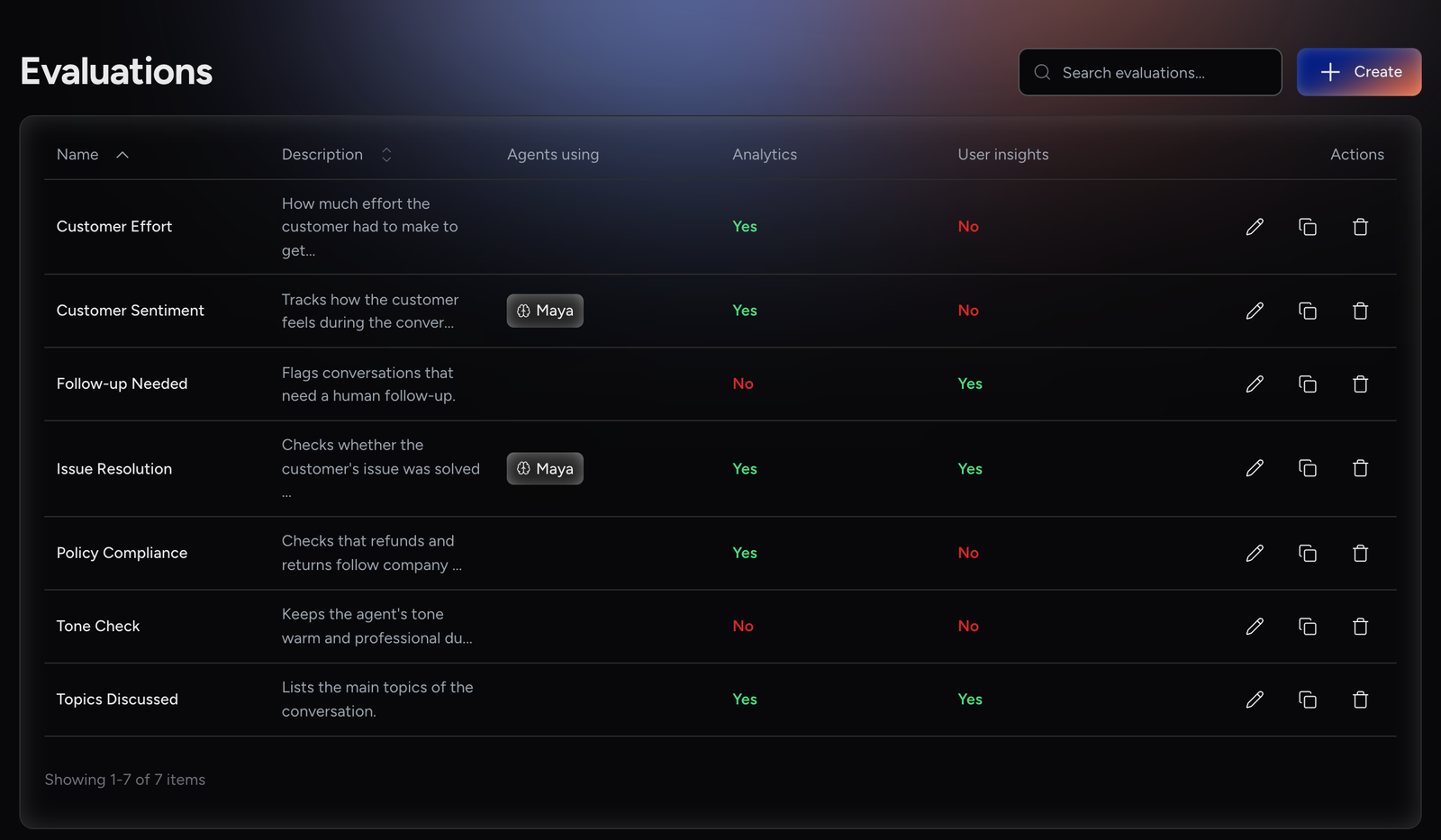
The list shows every evaluation in the project. Click a row, or the pencil icon, to open one.
Name |
The evaluation name. Click a column header to sort. |
Description |
The start of the description. The full text is shown when you point at it. |
Agents using |
The agents the evaluation is attached to. |
Analytics |
Yes when Admin Facing is on, so results appear in the Analytics Suite. |
User insights |
Yes when User Facing is on, so end users see their results in the app. |
Actions |
Edit, Clone and Delete. |
A search field appears once the project has more than five evaluations.
|
You need the Editor role or higher on the project to create, clone or delete evaluations. With the Viewer role you can open an evaluation, but you can’t change it. |
Creating an Evaluation
-
Click Create.
-
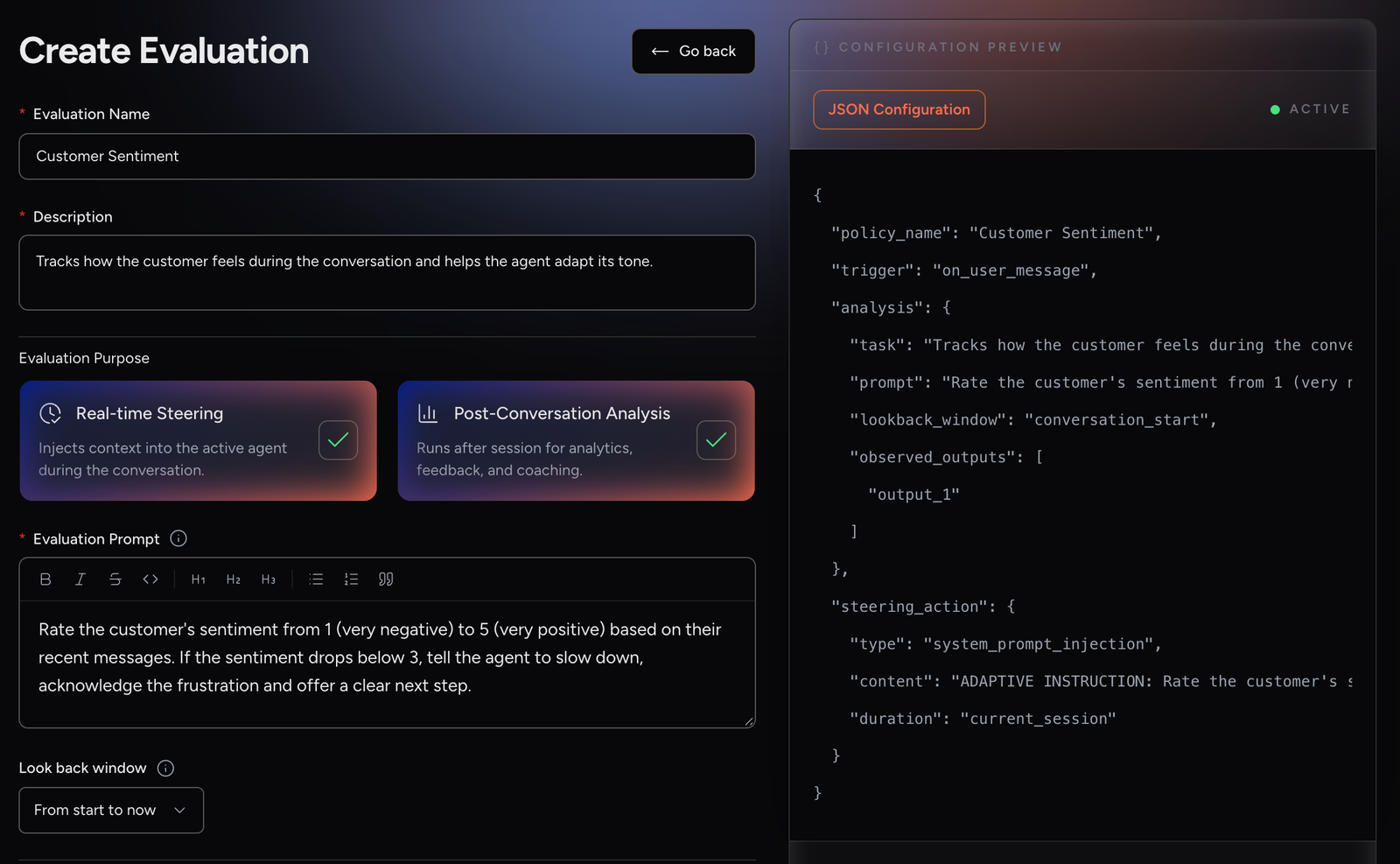
Enter an Evaluation Name and a Description.
-
Choose the Evaluation Purpose. See Evaluation Purpose.
-
Write the Evaluation Prompt.
-
Add at least one output data element. See Output Data Elements.
-
If you selected Post-Conversation Analysis, choose where the results go. See Where Results Go.
-
Click Submit.
Reset clears your changes. If you try to leave with unsaved changes, Studio asks you to confirm.
|
While you fill in the form, the right side of the page previews where the results will appear: the real-time steering configuration, the Analytics Suite tiles, the end-user Session Insights screen and the webhook payload. Previews use sample values, not real results. |
Evaluation Purpose
Select one or both modes:
Real-time Steering |
Runs during the conversation and gives the active agent context, so it can adjust on the spot. For example, if the conversation is going off-track, the agent can course-correct without waiting for the session to end. The result stays inside the conversation: it never appears in the Analytics Suite, in the app or in a webhook. |
Post-Conversation Analysis |
Runs after the conversation ends, for analytics, feedback and coaching. You need it for every destination (Where Results Go) and for the featured output. |
Evaluation Prompt
Tell the evaluation model what to look for in the conversation, what good and bad look like, and how to score it. The prompt applies to the whole evaluation; the output data elements define the exact values it returns.
|
State who you are evaluating. In a training roleplay, for example, write "Evaluate the USER’s answers", so the model scores the trainee, not the agent. |
Output Data Elements
Each output data element, also called an insight, is one value the evaluation returns. Every evaluation needs at least one. Click Add insight to add one, or Add group to add a group (see Grouping Output Data Elements). Use the arrows to change the order and the bin icon to remove an element.
Every element has these fields, in this order:
Type |
Text, Number, List or Pass / Fail. Changing the type clears the fields that belong to the old type. |
Output name |
A short label for the value. It is shown in the Analytics Suite, in exports and in the agent’s context. |
Description |
What the value captures, in plain words. It is shown next to the value in analytics and helps the model interpret it. |
Extraction prompt |
How to get the value from the conversation, for example what counts as a pass or how to compute the score. |
Extra fields by type:
Text |
No extra fields. A free-text answer. |
Number |
Max value: the top of the scale. It must be greater than 0. The scale always starts at 0. Describe in the Extraction prompt what the low and high ends mean. |
List |
Limit to specific items: a comma-separated list of the values the model picks from, for example |
Pass / Fail |
Pass label and Fail label: the wording shown for each outcome, for example |
Grouping Output Data Elements
By default, each element is scored on its own (Standalone). Elements in a group are scored together in one call and share the same reading of the conversation, which keeps linked values consistent with each other.
To create a group, click Add group, enter a Group name and an optional Group description, then click Add insight to group. Once a group exists, each element shows a dropdown where you can move it between Standalone and any group. Deleting a group keeps its elements; they become standalone.
Group elements that belong together, for example a score and the reasoning behind it. Keep elements standalone when they measure something independent, such as a detected scenario type or the language used.
|
A standalone element can’t see the results of other elements. If one value is calculated from others, for example an overall score, put it in the same group as those elements or make it the featured output. |
Formatting Output as Markdown
You can instruct an evaluation to return its output as Markdown. The result is then rendered with formatting (headings, bold text, lists, and emoji status marks) in Session Insights, instead of as plain text.
To do this, describe the structure you want in the output’s Extraction prompt. For example:
OUTPUT FORMAT — respond in clean Markdown only, in exactly this structure and order:

**Score:** `X / 6`

**Result:** 🟢 **PASS**  (use 🔴 **FAIL** instead if the score is below 3)

### Criteria
- 🟢 **Register match** — one or two sentences of reasoning with a short quoted snippet from the transcript.
- 🔴 **Visible willingness to act** — reasoning with a short quoted snippet.
- (…one bullet per criterion, in the order listed above, each beginning with 🟢 for pass or 🔴 for fail…)

Replace the example marks with the real verdicts. Do not add any preamble, closing remarks, tables, or text outside this structure.
Adapt the structure to whatever your evaluation needs.
Featured Output
Available when Post-Conversation Analysis is selected.
A featured output is one headline result for the whole evaluation, for example an overall score or an overall pass/fail. It doesn’t read the conversation itself: it receives the results of all the other output data elements and combines them.
Under Featured evaluation output, turn on Enable featured output and fill in:
Result type |
Pass / Fail (default) or Number. |
Featured prompt |
How to combine the other results into the headline result. This is separate from the main Evaluation Prompt. |
Pass label / Fail label |
Pass / Fail only. The wording for each outcome. |
Max value |
Number only. The top of the scale. The scale starts at 0. |
The featured output appears at the top of the end-user Session Insights screen (with User Facing on) and in the Featured Evaluations card of the Analytics Suite (with Admin Facing on).
|
If your evaluation has an overall score, make it the featured output rather than another Number element. |
Where Results Go
Available when Post-Conversation Analysis is selected.
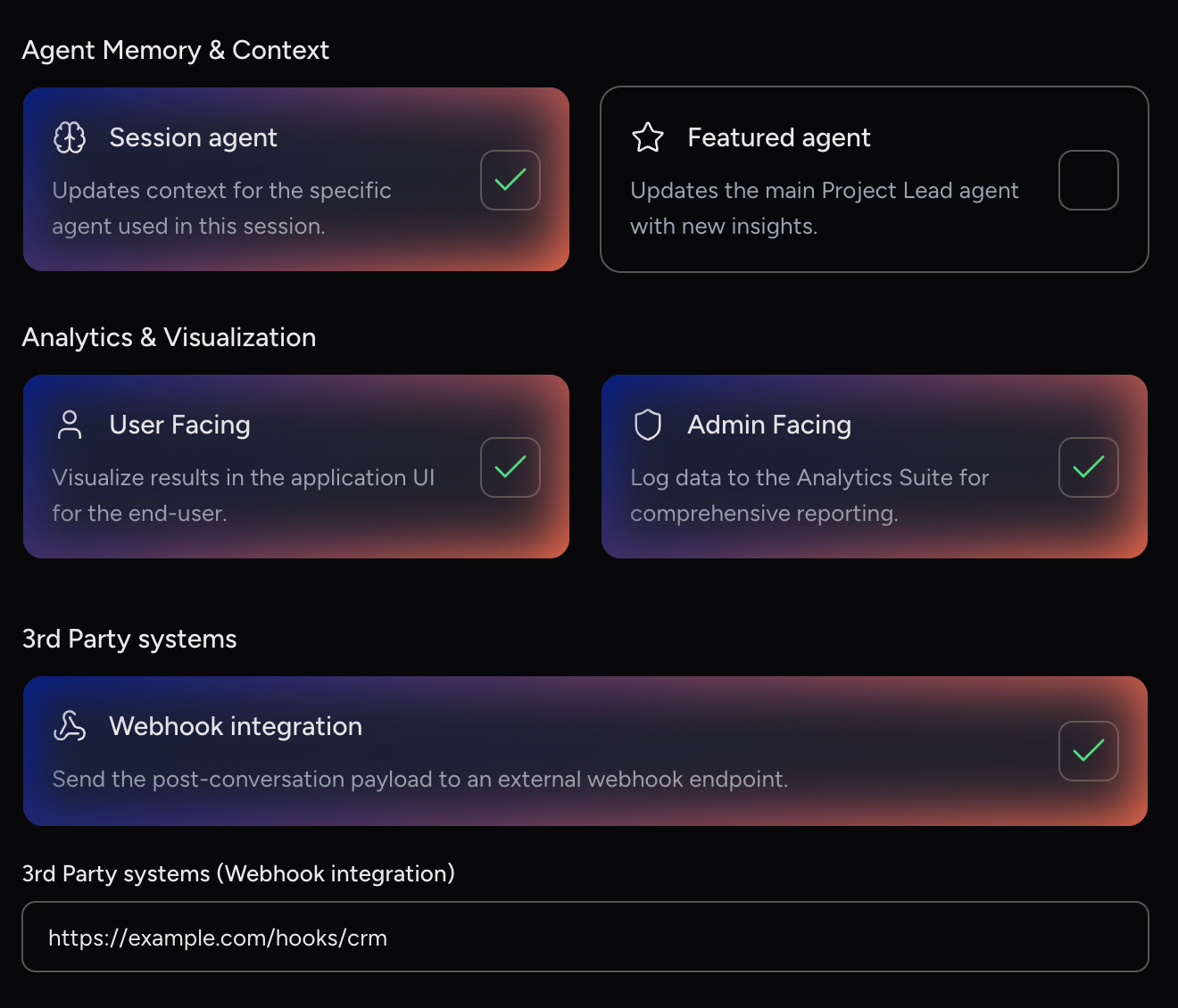
| Option | Section | Where the result goes |
|---|---|---|
Session agent |
Agent Memory & Context |
To the same agent, as context for its next conversation. |
Featured agent |
Agent Memory & Context |
To the project’s Featured Agent, as context for its next conversation. See Sending Results to Another Agent. |
User Facing |
Analytics & Visualization |
To the end user, in the web client and mobile apps: the Session Insights screen after the conversation and the agent’s Insights tab. In Empower projects these results also build the user’s Profile. Signed-in users only. See Insights. |
Admin Facing |
Analytics & Visualization |
To the Analytics Suite (Evaluations Metrics, Featured Evaluations) and its exports. |
Webhook integration |
3rd Party systems |
To an external system. Turn it on and enter the URL in 3rd Party systems (Webhook integration). The results are sent when the conversation ends. |
|
|
The Featured agent option is described in Studio as "Updates the main Project Lead agent with new insights." This means the project’s Featured Agent. |
Attaching Evaluations to Agents
An evaluation runs only for the agents it is attached to.
-
Open the agent and scroll to User’s Evaluation, the last section of the form.
-
Search for the evaluation and select it. It appears under Active Evaluations. You can attach several.
-
Save the agent and publish it, so production conversations use the evaluation.
Use Go to Evaluations or Create Evaluation to manage evaluations without leaving the agent. See User’s Evaluation.
|
Attaching an evaluation makes it run. It doesn’t mean the agent can read the result:
|
Sending Results to Another Agent
To let one agent use the results of conversations with another agent, for example a coaching agent that reviews a roleplay:
-
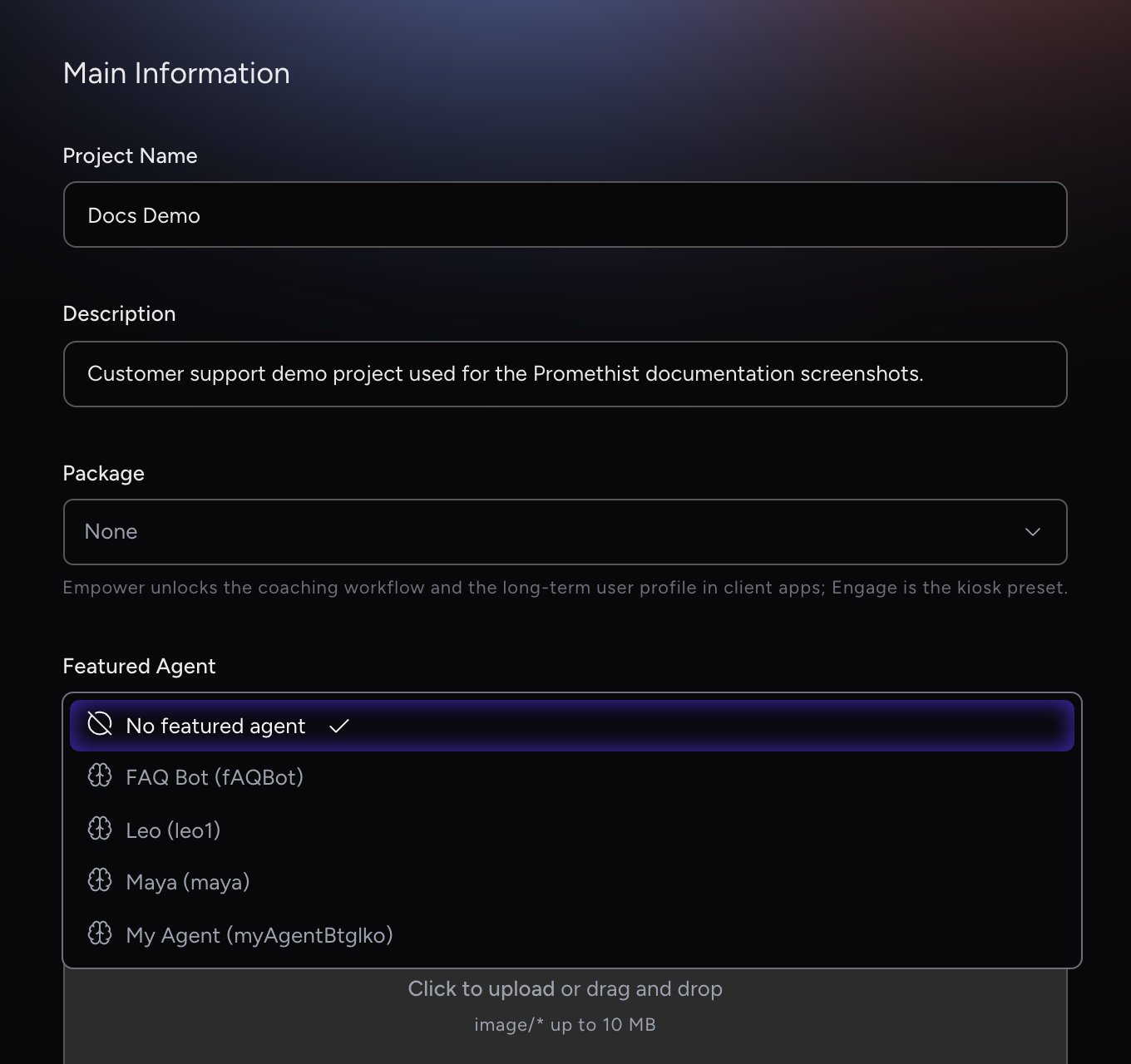
In Project → Settings, set Featured Agent to the agent that should receive the results (the coaching agent). See Project Settings.
-
In the evaluation, turn on Featured agent.
-
Attach the evaluation only to the agent being evaluated (the roleplay agent), not to the Featured Agent. Otherwise the Featured Agent’s own conversations are scored too.
The Featured Agent gets the results at the start of its next conversation. A project has only one Featured Agent.
Editing, Cloning and Deleting
-
Edit: change anything and click Save changes.
-
Clone: creates a copy named "<name> - clone" with all settings. The copy isn’t attached to any agent.
-
Delete: removes the evaluation and all its output data elements. This can’t be undone, and Studio doesn’t warn you if agents use the evaluation. Check Agents using first.
Legacy Format
Evaluations created before groups existed can show This evaluation uses the legacy format. They score all their elements together in one call.
Saving the evaluation upgrades it: from then on, each standalone element is scored separately. To keep the elements scored together, put them into one group before you save.
Troubleshooting
- Results don’t appear in the app?
-
Check that Post-Conversation Analysis and User Facing are both on. The Profile tab only shows results from evaluations with User Facing on, and only in projects whose package is Empower. User Facing doesn’t work with Real-time Steering alone. Also check that the evaluation is attached to the agent’s published revision and that the user is signed in to the project.
- Analytics stay empty?
-
Check, in this order: the evaluation is attached to the agent and that revision is published; Post-Conversation Analysis is on; Admin Facing is on (it’s off by default); the conversations happened after you added the element; the Analytics Suite filters (dates, agent versions, user) include them.
- My real-time evaluation shows nothing anywhere?
-
Real-time results stay inside the conversation. To also see them in analytics, the app or a webhook, select Post-Conversation Analysis too and choose a destination.
- Can’t save: an error appears under Analytics & Visualization?
-
With Post-Conversation Analysis on, turn on User Facing, Admin Facing or Webhook integration. Session agent or Featured agent alone isn’t enough.
- The agent doesn’t remember the last conversation’s result?
-
Attaching the evaluation isn’t enough. Turn on Session agent.
- The coaching (featured) agent doesn’t get the results?
-
Set that agent as Featured Agent in Project → Settings, and turn on Featured agent in the evaluation. Don’t attach the evaluation to the Featured Agent itself.
- An overall score ignores the other scores?
-
Standalone elements can’t read each other. Make the overall score the featured output, or put the elements in one group.
- Error "Max value must be greater than 0"?
-
Number scales start at 0. Enter a maximum above 0.
- Scores changed after I saved an old evaluation?
-
It was in the legacy format and saving upgraded it. See Legacy Format.