End User Access
Mobile Applications
The PromethistAI Mobile Clients are available on the Apple App Store and Google Play Store under the name PromethistAI. These applications are the main way end-users access and interact with Relational Agents built on the PromethistAI Platform.
They are designed to be intuitive, support modern devices, and provide feature-rich experiences such as QR enrollment, agent sharing, and interactive content.
The apps share their interface and settings with the Web Client, so an agent behaves the same way in either.
Supported Devices
PromethistAI classifies supported devices into three categories, to set expectations for performance and feature availability.
Fully Supported
The full experience: smooth rendering, HDR graphics, and low-latency audio.
| iOS | Android |
|---|---|
|
|
Best Effort
Core features work, with reduced performance: graphics are downscaled and transitions are slower.
| iOS | Android |
|---|---|
|
Mid-range devices meeting all three criteria:
For example Pixel 4a, 5 and 5a; Galaxy A52 to A54; Oppo Reno 6 to 8; and Xiaomi Mi 10 and 11. |
Unsupported
Installation may be possible, but these devices are not supported. Expect instability, and some features will fail.
| iOS | Android |
|---|---|
|
|
Home Screen
The home screen is built around the project you have open. It shows either the project’s Featured agent, with a section listing what you can do here, or the project name and description when no featured agent is set. An Agents section lists the project’s agents. See Home Screen for which agents appear.
The project logo opens your Projects, the gear opens Settings, and the QR button opens a scanner for adding an agent by code. A bar at the bottom of the screen moves between Home and Profile. Profile summarises the signed-in user’s evaluated sessions as written feedback, a suggested change, and a list of skills with a trend and a score for each. It is driven by the same evaluations as Insights, so it stays empty until conversations have been evaluated.
|
Why is my Profile empty? The Profile tab only fills with results from evaluations that have User Facing turned on, because those are the results shared with the user. It also belongs to the Empower package: in a project set to Engage, the Profile tab doesn’t show results. See Where Results Go and the Package setting in Project Settings. |
Agent Detail
Opening an agent shows its visual, name and description, a button to start talking, and three tabs:
- Description
-
What the agent is for.
- Insights
-
Scores from any user-facing evaluations the agent has enabled. See Insights.
- History
-
Your earlier evaluation results for this agent.
All of this content is configured in the PromethistAI Platform by the agent creator.
During a Conversation
The conversation controls switch between the voice and chat views, and open Settings. The microphone button is how you speak when Conversation mode is set to Push to talk.
-
The 3D presence runs locally
-
Voice interaction streams in real time
-
The chat view shows a timestamped transcript, and lets you type instead of speaking
-
Multimodal steps such as forms, confirmations, image tiles and embedded web pages display inline
Reporting a Problem
If an agent says something wrong, odd or inappropriate, you can report it from the conversation.
-
Open the chat view and press and hold the text of the message you want to report. A small menu appears with Copy and Report an issue.
-
Choose Report an issue.
-
Under Type of problem, choose what went wrong, then describe it under Please describe the issue and click Submit.
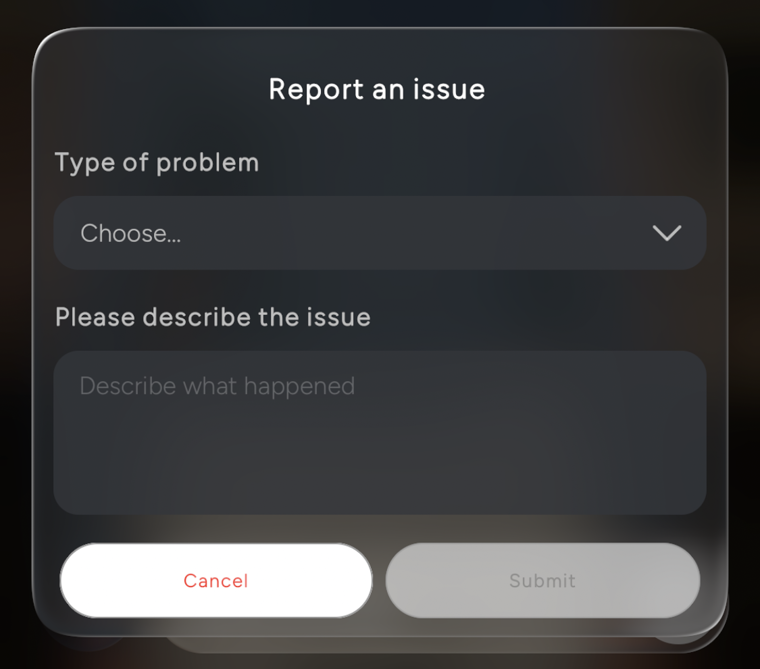
Reporting this way flags the exact message you picked, so the people who look into it know what the agent said. For problems that are not about one message, use Settings → Support → Report an issue instead. See the Quick Start for the whole conversation screen.
Insights
When an agent has at least one user-facing evaluation enabled, the Insights tab on the agent screen shows how the signed-in user’s own conversations with that agent scored. Each enabled insight type appears as a card containing:
-
The insight name and a short description of what it measures
-
The user’s average score, with their lowest and highest so far
-
A bar chart with one bar per conversation, oldest first, and the most recent one highlighted
What is measured, and how many cards appear, comes from the agent’s own evaluations, so two agents rarely show the same Insights.
Insights are private to each user. They reflect only the conversations the signed-in user has had with that agent, never another user’s data.
|
Insights require the user to be signed in and are configured per-agent through the User Facing destination on an evaluation. Learn more about Evaluations. |
Sharing
Agents can be shared via QR code or direct link.
Recipients without the app are redirected to the store page and, after installation, taken directly to the shared agent.
Connectivity & Performance
-
The voice pipeline requires a stable internet connection
-
3D rendering happens on the device, so visuals stay fluid on congested networks
How the agent listens is your choice rather than the device’s. Set it under Settings → Conversation → Conversation mode. See Conversation mode.